
Tempo Delay You Can Read, with Live Echo Screens | RONE Delay Complete Guide · 5 min · Watch on YouTube
1Welcome to RONE Delay
RONE Delay is a feedback delay built to be read, not studied. Turn one dial for the time, pick how the echoes sit in the stereo field, set how many come back and how they darken - and watch them on screen while the track plays.
- One TIME dial - straight, dotted and triplet note values in one turn, sorted by length, from 1/64 to a dotted bar. The value is written out in the middle of the dial, never a bare dot.
- Four stereo modes - MONO, SPREAD, PING-PONG and DUAL (two delays, left and right, each with its own TIME).
- A filter inside the loop - every echo passes the high-pass and the low-pass once more, so each repeat is a little thinner and darker than the last.
- SEND and WET - close SEND and the tail rings on (the throw); close WET and the echoes are gone at once.
- Safe by design - FEEDBACK at 100 % holds the echoes forever instead of building up, and no echo ever passes 0 dBFS.
The dry signal is never touched. What you hear is your sound plus the echoes - closing every knob gives you back exactly what came in.
Where it shines
- Vocal throws - hold one word into the delay with HOLD and let it ring.
- Rhythmic leads and plucks - dotted and triplet echoes that sit on the groove.
- Slapback and doubling - short MS times for width without a tail.
- Dub - high feedback, a dark loop filter and KILL to stop it on cue.
The 10-second version
- Insert RONE Delay on the track.
- Pick a preset - the list is sorted by use.
- Turn TIME to the note value you want.
- Set FEEDBACK for how many echoes, WET for how loud.
2Installation with the RONE Plugins Center
Every RONE product is installed, updated and licensed through one application: the RONE Plugins Center. You never download individual installers by hand, and you never enter serial numbers into the plugin itself.
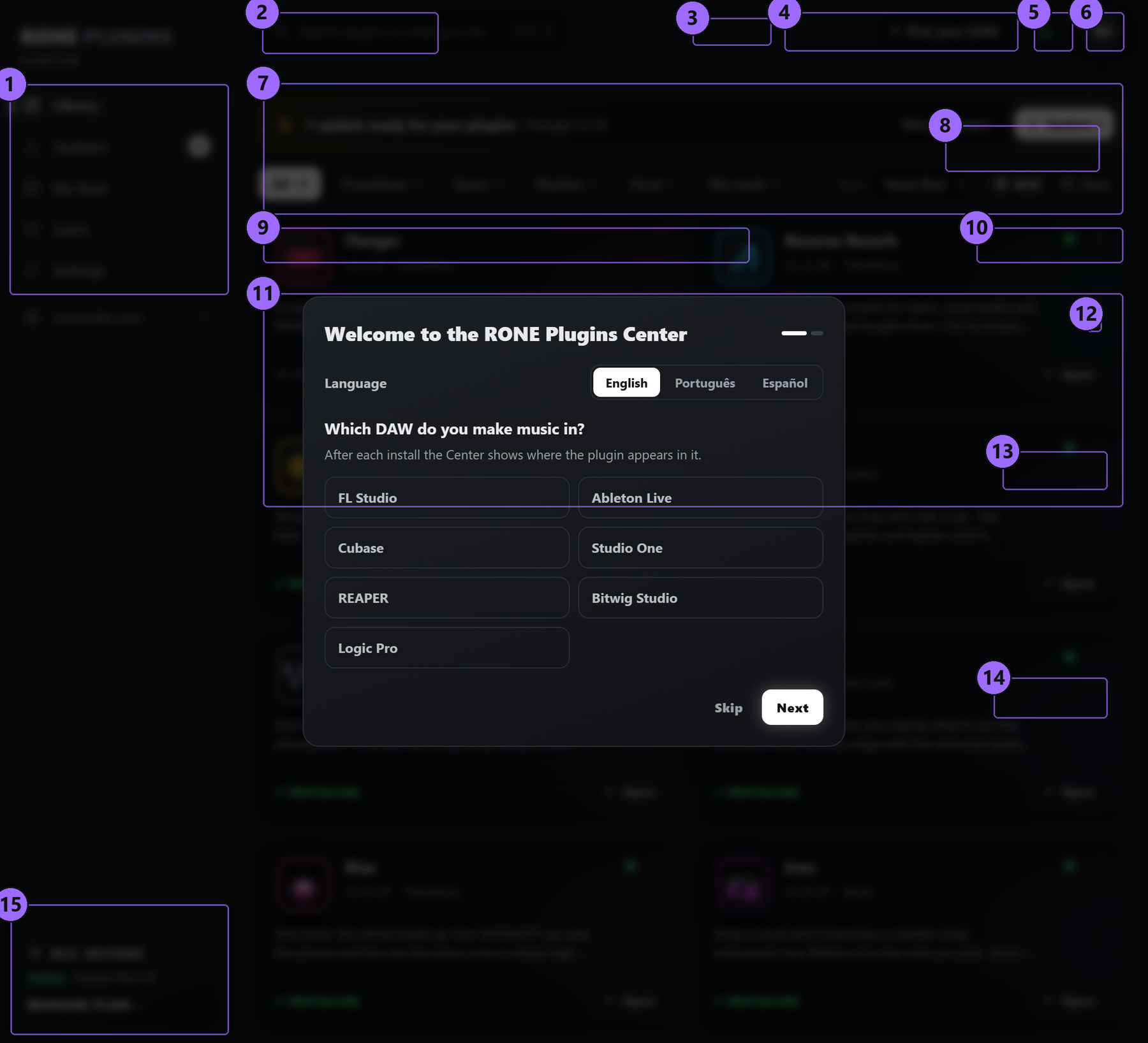
Step by step
- Download the Center from roneaudio.com and run the installer (Windows:
RONE_Plugins_Center_Installer.exe, macOS:RONE_Plugins_Center.dmg). On Windows the installer also adds the Microsoft WebView2 runtime if your PC does not have it yet; it is required for the plugin interfaces. On macOS (10.15 Catalina or later, Intel and Apple Silicon) open the .dmg and drag the Center onto Applications. It is signed and notarized by Apple, so macOS only asks once whether you want to open an app downloaded from the internet: press Open. - Open the Center and sign in with your roneaudio.com account (the same e-mail and password you used on the website). Your licences and device slots are checked automatically: an active ALL ACCESS plan unlocks every plugin, and a lifetime licence unlocks the plugin it was bought for — so RONE Delay opens either way.
- Find RONE Delay in the list and press INSTALL. The Center downloads the signed installer, verifies its checksum, installs it silently and registers the version.
- When the card shows INSTALLED, start (or restart) your DAW and rescan plugins if it does not pick up new plugins automatically. All RONE plugins appear next to each other in your plugin list because every name starts with RONE.
- Updates appear on the same card. Press UPDATE on one plugin or UPDATE ALL at the top. Close the standalone version of a plugin before updating it.
Where the files go
Windows
| File | Location |
|---|---|
| VST3 | C:\Program Files\Common Files\VST3\RONE\RONE Delay.vst3 |
| Standalone app | C:\Program Files\RONE Plugins\RONE Delay.exe |
| This manual | C:\Program Files\RONE Plugins\Manuals\ |
macOS
| File | Location |
|---|---|
| VST3 | /Library/Audio/Plug-Ins/VST3/RONE Delay.vst3 |
| Audio Unit | /Library/Audio/Plug-Ins/Components/RONE Delay.component |
| Standalone app | /Applications/RONE Delay.app |
| This manual | /Users/Shared/RONE Plugins/Manuals/ |
Licence and activation
Licensing is tied to your account, not to a key. The plugin checks the licence file that the Center writes when you sign in. There are two ways to own it: an ALL ACCESS plan, which unlocks every RONE plugin for as long as it is active, or a lifetime licence for this plugin alone, which never expires. Either one opens RONE Delay, and buying the lifetime licence later does not disturb a plan you already have.
If a plugin ever shows the A RONE Delay licence or RONE ALL ACCESS is required screen, open the Center, make sure you are signed in and the plugin shows as licensed, then reopen it. Two devices can be signed in at the same time on either kind of licence; sign out on an old machine from the Center's Account page to free a slot. A lifetime licence keeps working offline for far longer than a plan does — there is nothing for it to expire against — but the Center still needs to reach the internet occasionally to confirm it.
Uninstalling
Windows: Settings → Apps → RONE Delay (RONE). macOS: delete the bundles listed above. Presets and settings in your user folder are kept.
3Quick start
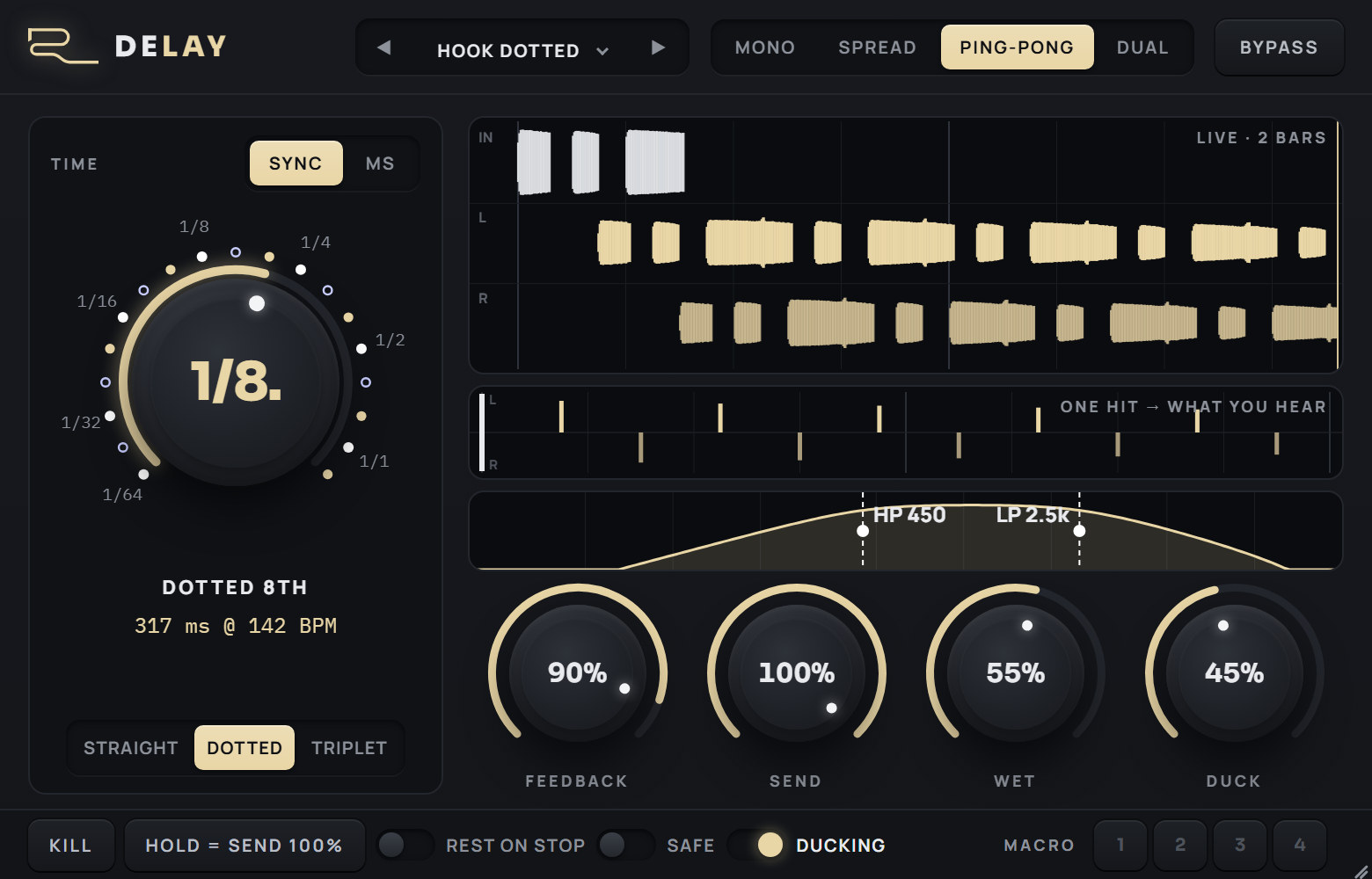
- Insert RONE Delay on a vocal, a lead or a pluck. Use it as an insert: there is no dry control - your sound always passes - so on an FX return the sent signal would be heard twice.
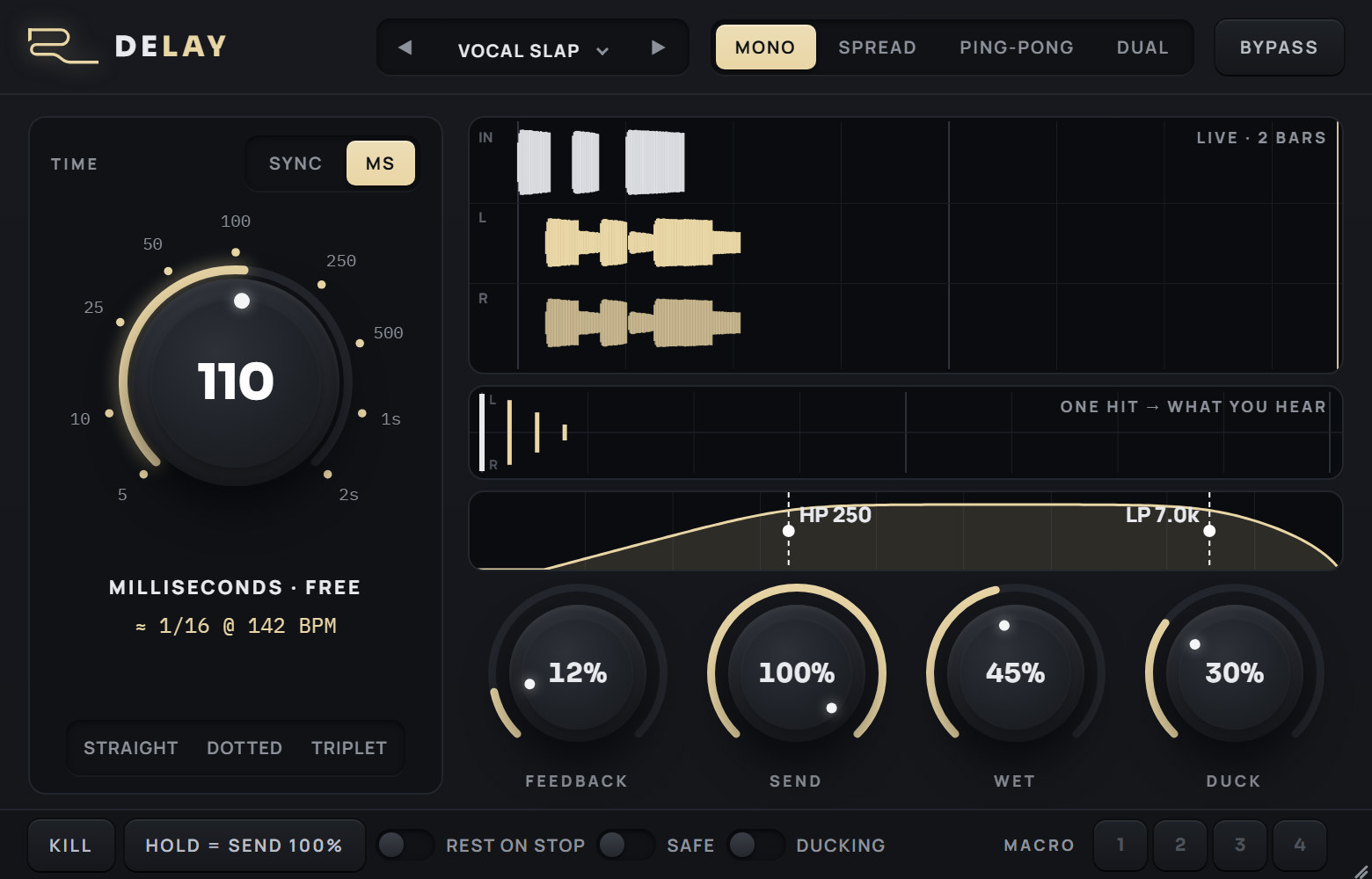
- Press play. The LIVE screen draws the sound going in (IN, white) and the echoes coming out (L and R, champagne) over the last two bars.
- Pick a preset - click the name for the list, or step with the arrows. HOOK DOTTED is the opening setting: a dotted 8th, ping-pong, a band-passed loop.
- Turn TIME. Every step is a note value on the host tempo; the readout under the dial writes it out (DOTTED 8TH · 317 ms @ 142 BPM).
- Set FEEDBACK for how many echoes come back, WET for how loud they are. The ONE HIT map shows where every echo lands and how loud it is before you play a note.
- Shape the loop - drag the HP and LP handles on the filter strip. Every repeat goes through them again.
4Interface tour
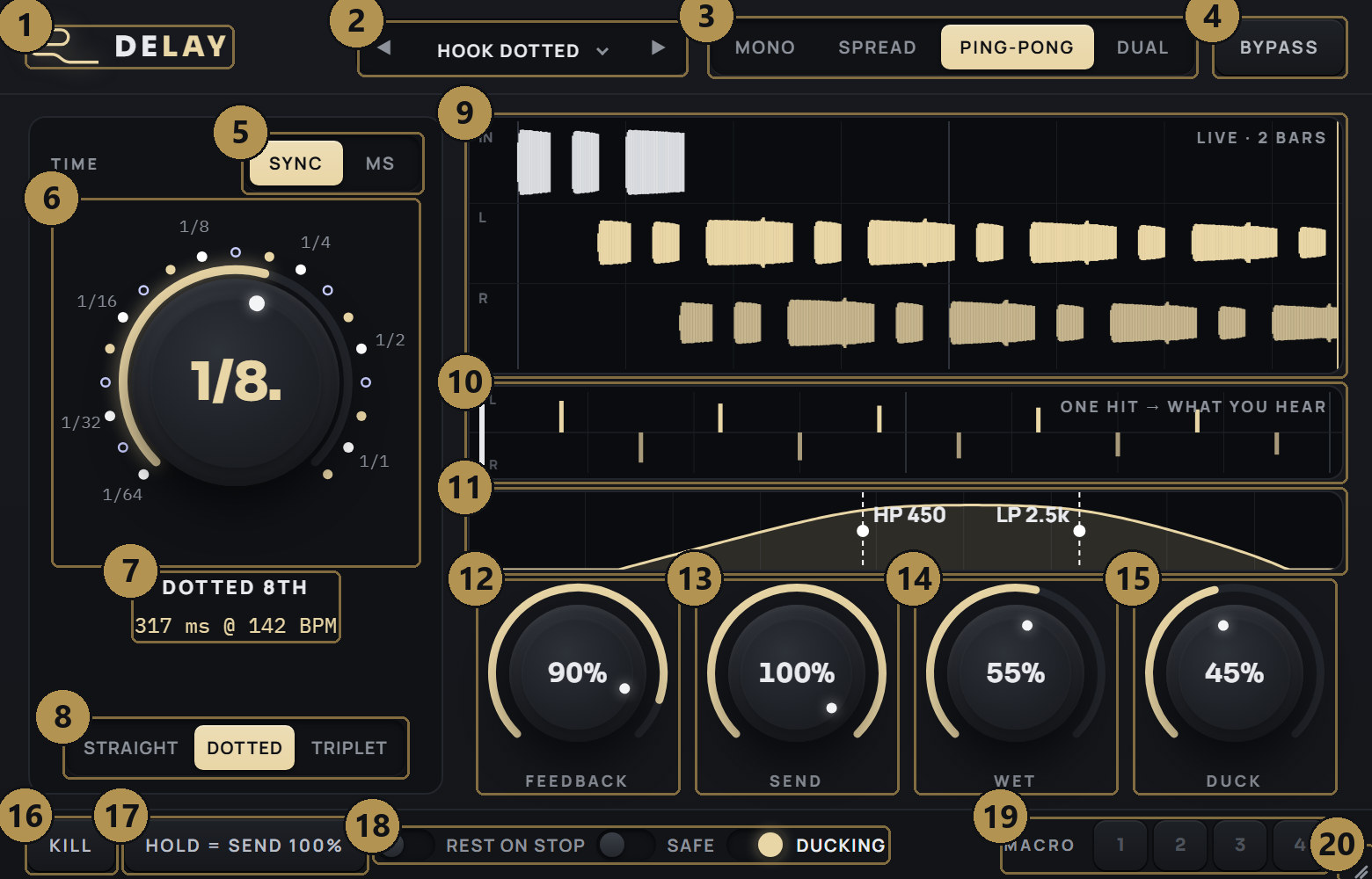
5TIME
SYNC - note values
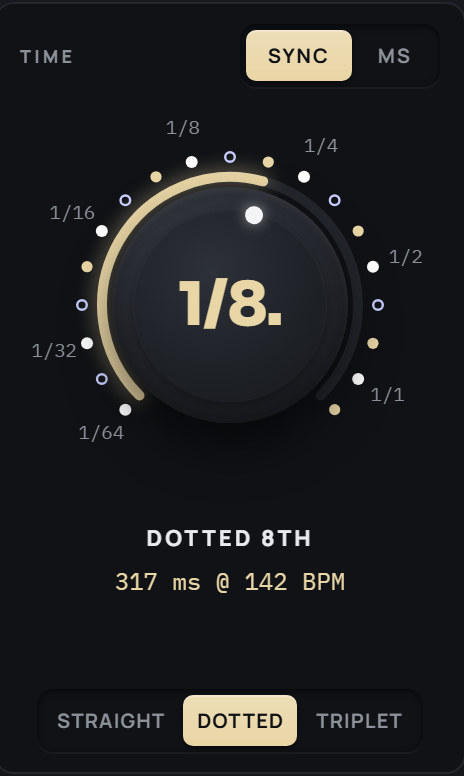
The dial holds 19 note values in one turn, sorted by length - straight, dotted and triplet mixed in the order you hear them get longer:
1/64 · 1/32T · 1/32 · 1/16T · 1/32. · 1/16 · 1/8T · 1/16. · 1/8 · 1/4T · 1/8. · 1/4 · 1/2T · 1/4. · 1/2 · 1/1T · 1/2. · 1/1 · 1/1.
Around the dial, white dots with a label are the straight values, champagne dots the dotted ones and rings the triplets. The middle of the dial always writes the current value out (1/8.), the line under it names it (DOTTED 8TH) and gives its length at the host tempo (317 ms @ 142 BPM). The STRAIGHT / DOTTED / TRIPLET row lights the family of that step.
| Gesture | What it does |
|---|---|
| Drag the dial up / down | One step every 16 pixels; hold Shift for finer travel (40 pixels a step). |
| Mouse wheel / arrow keys | One step per notch or key press. |
| Click a dot or a label | Jumps straight to that value. |
| Right-click the dial (VST3) | The host's automation menu for TIME. |
MS - free time
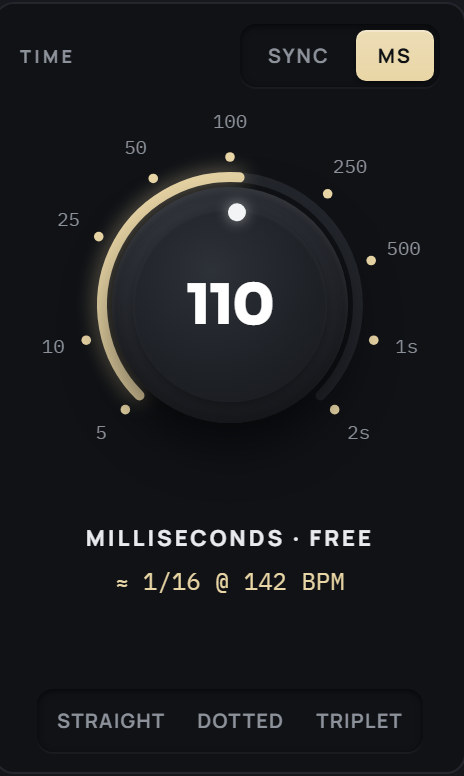
Switch to MS for a time that is not tied to the tempo: 5 ms to 2 s, on a log scale marked 5, 10, 25, 50, 100, 250, 500 ms, 1 s and 2 s (click a number to jump to it). The readout shows the nearest note value at the host tempo (≈ 1/16 @ 142 BPM), so you know where a free time sits against the beat. Drag, the wheel and the arrow keys work as in SYNC; Shift is fine.
Switching between SYNC and MS keeps the time you hear: SYNC → MS takes the note's length in milliseconds, MS → SYNC takes the nearest note value.
The delay time. In SYNC it follows the host tempo; in MS it is fixed. The opening preset is 1/8. (dotted 8th).
Which of the two the dial sets. Both values are kept, so switching back and forth never loses your setting.
6Stereo modes
The switch in the header decides how the echoes sit in the stereo field. In MONO, SPREAD and PING-PONG the delay is fed with your sound summed to mono; in DUAL each side feeds its own delay.
| Mode | What you hear |
|---|---|
| MONO | One delay line, the echoes in the middle. |
| SPREAD | Two lines, the right one 17 ms longer: the same echoes, but wide. |
| PING-PONG | The echoes jump from side to side: the first on the left, then right, left, right. |
| DUAL | Two separate delays: left in → left out, right in → right out, each with its own TIME. |
Changing the mode rewires the loop, so the echoes in it fade out in 20 ms and the delay starts clean in the new mode.
DUAL - two TIME dials
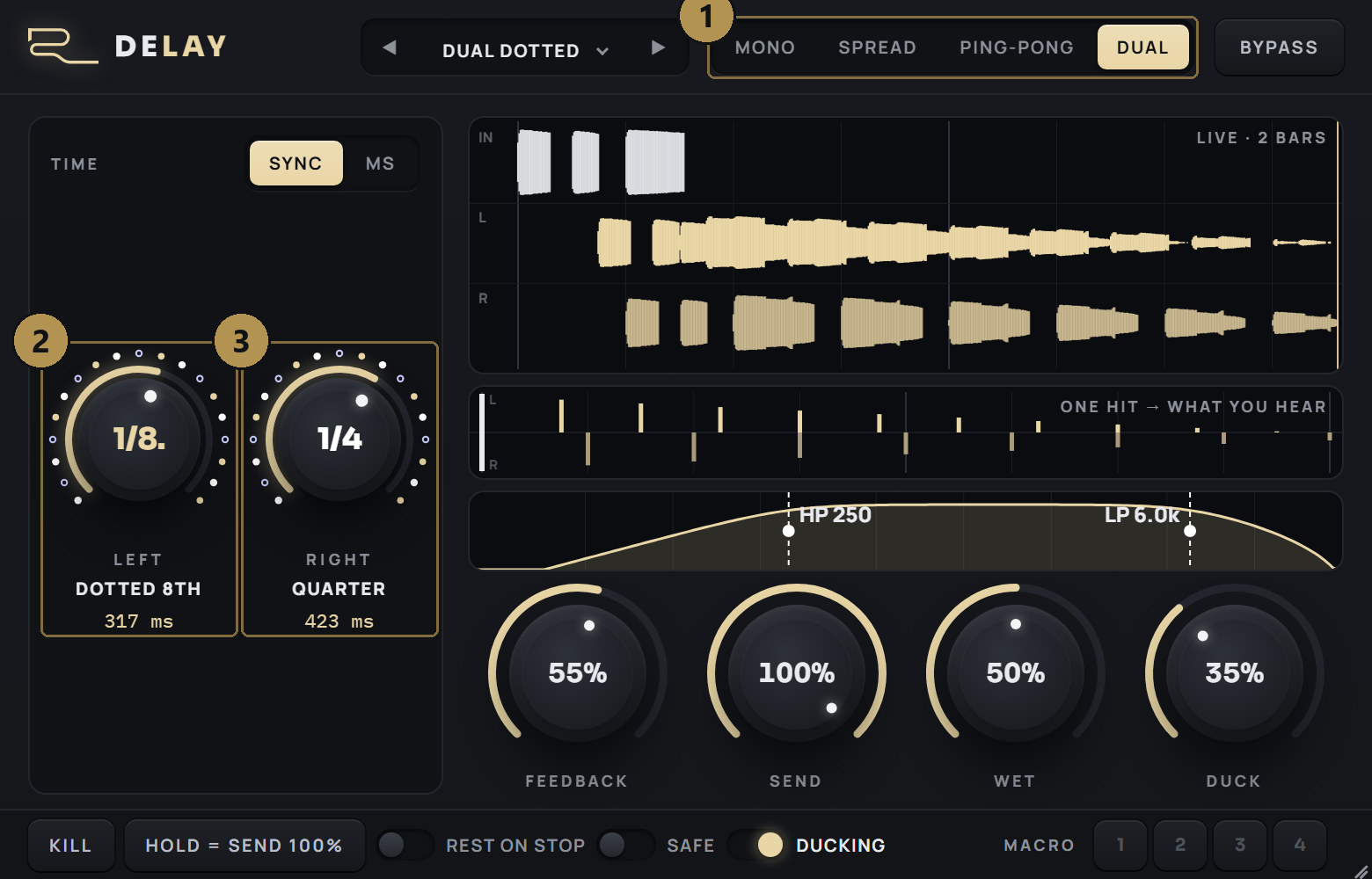
In DUAL the big dial gives way to two small dials side by side, LEFT and RIGHT. Each sets its own side directly: drag, wheel and arrow keys as on the big dial, Shift for fine. The value is written inside each dial, and the name and length under it. SYNC / MS applies to both. FEEDBACK, SEND, WET, DUCK and the loop filter are shared by the two sides.
The right side opens as a quarter note (375 ms in MS). The ONE HIT map draws the left echoes above the line and the right ones below, so you see the two rhythms against each other.
7The loop filter

The strip under the screens is a high-pass and a low-pass inside the feedback loop. The first echo passes them once, the second twice, the third three times - so every repeat is thinner and darker than the one before, the way old tape and analogue delays faded out. The curve on the strip is the filter's real response.
| Gesture | What it does |
|---|---|
| Drag on the strip | The nearer handle follows. HP always stays a little below LP. |
| Mouse wheel on the strip | The nearer handle's slope: 6, 12, 18, 24, 36 or 48 dB/oct (wheel up = steeper). |
| Double-click near a handle | Turns that filter off: HP to 20 Hz (OFF), LP to 20 kHz (OFF). |
| Right-click near a handle (VST3) | The host's automation menu for that frequency. |
At rest each handle shows only its frequency (HP 450, LP 2.5k). While the pointer is on the strip the slope appears as a second line under it.
Where the loop cuts the lows and the highs. The opening preset is HP 450 Hz, LP 2.5 kHz - a band that keeps the echoes out of the way of the dry.
How steep each cut is, set separately for HP and LP. 6 dB/oct darkens gently over many repeats; 36 and 48 dB/oct give the hard band-passed sound of a telephone or radio.
8FEEDBACK, SEND, WET, DUCK
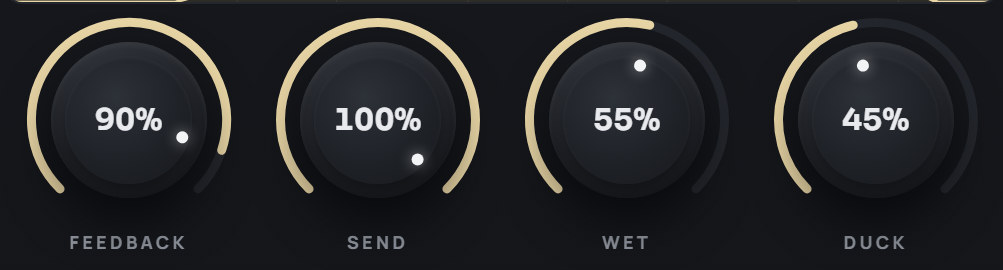
How much of each echo goes back into the delay - how many echoes you hear. Hover the knob: its tooltip tells you how long the tail lives now and how many repeats it has (Now: … s, … repeats, or ∞ HOLD).
At 100 % the knob shows ∞, its arc turns white and the echoes hold forever - an infinite loop you can play over. SAFE keeps it from building up.

How much of your sound goes into the delay. Close it and what is already inside keeps ringing - the classic throw: open SEND for one word, close it, and the word repeats on its own.
How loud the echoes are. Close it and they are gone at once. The dry is never touched by WET (or by any other control).
The echoes dip while your sound plays and come back up in the gaps, so a busy vocal stays clear and the tail fills the pauses. Ducking starts when the dry reaches -40 dBFS and is full at -10 dBFS; after the dry stops the echoes come back over about 150 ms. DUCK sets how deep they go - at 100 % they disappear under a loud phrase.
9The screens
LIVE · 2 BARS
The big screen shows the last two bars at the host tempo, scrolling to the left, with the newest moment at the right edge. Three lanes: IN is your sound going in (white), L and R are the echoes coming out of each side (champagne). Heights are peak levels in dB, so quiet late echoes stay visible. While the host plays, bar lines are drawn strong and beat lines faint.
Use it to see what the settings do: in PING-PONG the echoes alternate between the L and R lanes, in SPREAD they sit on both a little apart, in DUAL each lane follows its own TIME. With DUCK up you see the echoes shrink under the phrase and swell in the gap after it.
ONE HIT → WHAT YOU HEAR
The narrow screen is a prediction you can read before you play: the white bar on the left is one hit, and every champagne bar after it is an echo - where it lands in time, on which side and how loud. Left echoes point up from the centre line, right echoes down; in MONO each echo is drawn on both. The heights come from the real loop filter, FEEDBACK, SEND and WET, so the map changes as you turn them. Faint lines mark the beats, stronger ones the bars.
10Footer: KILL, HOLD, lamps, BYPASS

Ends the tail now: the echoes fade out in 20 ms and the delay is emptied. Your settings do not change, and the next sound you send starts a fresh set of echoes.
While you hold it, SEND is at 100 % whatever the knob says; let go and SEND is back to the knob. Set SEND to 0 and HOLD becomes a throw button: hold it over one word, release, and the word repeats on its own. As a host parameter it can be automated for exact throws.
The echoes fade out and your sound passes untouched. Switching it never clicks.
The lamps
The three lamps are read-outs, not switches: the engine always does these things, and the lamp lights when it happens.
| Lamp | Lights when |
|---|---|
| REST ON STOP | The host has just started or stopped playing. On both edges the echoes fade out in 20 ms and the delay is emptied, so a stopped project is silent and every play starts clean - no old tail from where you were before. The standalone has no transport, so it never rests. |
| SAFE | The loop is riding its safety knee. What goes into the delay is clean up to -3 dBFS and runs into a soft knee above it, so a loud input or FEEDBACK at 100 % holds instead of building up, and no echo ever passes 0 dBFS. |
| DUCKING | DUCK is up and the echoes are being pulled down under your sound. |
11Presets and MACRO
Presets
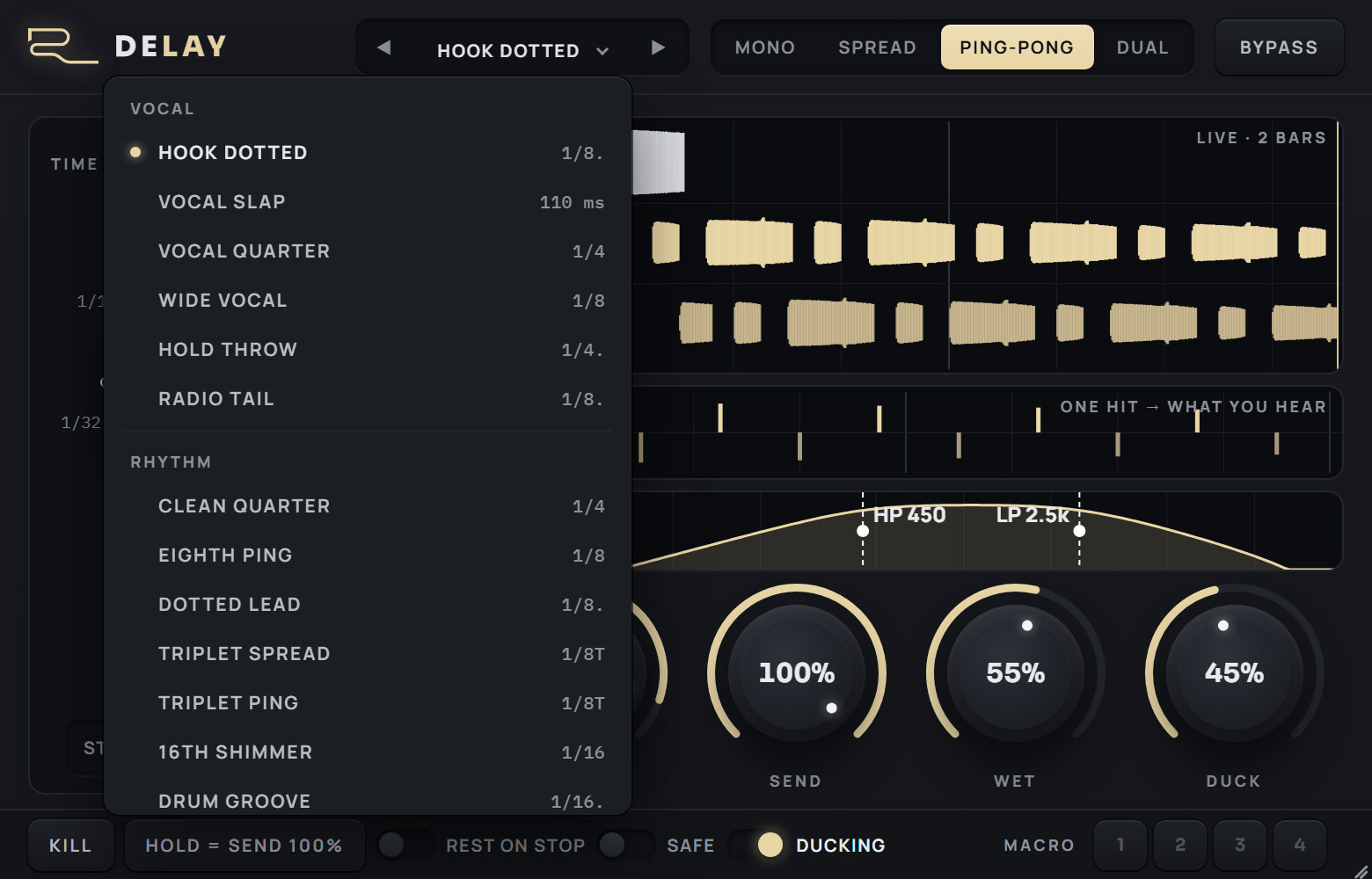
Click the preset name to open the list. The 30 factory presets are grouped by use - VOCAL, RHYTHM, SLAP, DUB, SPACE, DUAL and FX - and each row shows its time on the right (a note value, a time in ms, or DUAL). The ◀ ▶ arrows step through the whole list.
A preset sets TIME (both sides for the DUAL presets), the stereo mode, FEEDBACK, SEND, WET, DUCK and the loop filter with its slopes. Change anything and a * appears after the name. The preset name is saved with the project.
| Category | Presets |
|---|---|
| VOCAL | HOOK DOTTED · VOCAL SLAP · VOCAL QUARTER · WIDE VOCAL · HOLD THROW · RADIO TAIL |
| RHYTHM | CLEAN QUARTER · EIGHTH PING · DOTTED LEAD · TRIPLET SPREAD · TRIPLET PING · 16TH SHIMMER · DRUM GROOVE |
| SLAP | SLAP · DOUBLER · ROOM SLAP · FLAM |
| DUB | DUB THROW · DUB SPACE · DARK DUB · STEPPER |
| SPACE | BIG SPACE · WASH · INFINITE HOLD |
| DUAL | DUAL DOTTED · DUAL SLAP · DUAL POLY · DUAL DRIFT |
| FX | TELEPHONE · RISER FEED |
MACRO 1-4

Four slots in the footer for your own settings, saved with the project.
| Gesture | What it does |
|---|---|
| Click an empty slot | Saves the current settings there. |
| Click a full slot | Recalls it. |
| Hold a slot (about 0.6 s) | Saves over it. |
| Right-click a slot | Clears it. |
A full slot shows a small dot; the slot you are on is lit, and it goes dark again as soon as you change something. A slot keeps TIME (SYNC / MS and both sides), the stereo mode, FEEDBACK, SEND, WET, DUCK and the loop filter with its slopes - not BYPASS or HOLD.
12Step-by-step workflows
The vocal throw
- Preset HOLD THROW (SEND 0, a dotted quarter, ping-pong).
- Play the vocal and hold HOLD over the word you want thrown; let go after it.
- Set FEEDBACK for how long it rings; darken it with LP.
- To print it, automate Hold Send in your DAW instead of holding the button.
The dotted lead
- Preset DOTTED LEAD, or TIME on 1/8. in PING-PONG.
- FEEDBACK 40-60 %, HP around 300 Hz so the echoes stay out of the bass.
- DUCK 30-50 % keeps the lead's notes clear and lets the echoes fill the gaps.
Slapback and doubling
- Preset VOCAL SLAP or DOUBLER - TIME in MS (20-120 ms).
- FEEDBACK low (0-15 %), SPREAD for width.
- Close WET until the double sits behind the voice.
A dub spin
- Preset DUB THROW or DARK DUB.
- Ride FEEDBACK up towards 100 % - SAFE keeps the loop from running away.
- Pull LP down while it spins, then press KILL on the downbeat.
Two rhythms at once
- Preset DUAL POLY (a triplet against a dotted 8th) or DUAL DOTTED.
- Set LEFT and RIGHT to two values that cross - the ONE HIT map shows the pattern they make.
- Keep FEEDBACK moderate; two lines fill up twice as fast.
13Interface conventions
All RONE plugins share the same graphite interface language, so once you know one, you know them all.
| Gesture | What it does |
|---|---|
| Drag a knob up/down | Changes the value. The lit arc shows where you are in the range; the value is printed inside the knob. |
| Hold Shift while dragging | Fine adjustment. |
| Double-click a knob | Resets it: FEEDBACK 45 %, SEND 100 %, WET 55 %, DUCK OFF. |
| Right-click a control (VST3) | Opens your DAW's automation / parameter menu for that control (for example FL Studio's Create automation clip, Link to controller). RONE never shows a browser context menu. |
| Mouse wheel | Steps the TIME dials and the knobs; on the filter strip it sets the slope. |
| Drag the triangle in the bottom-right corner | Resizes the window. The interface scales proportionally and keeps its aspect ratio. |
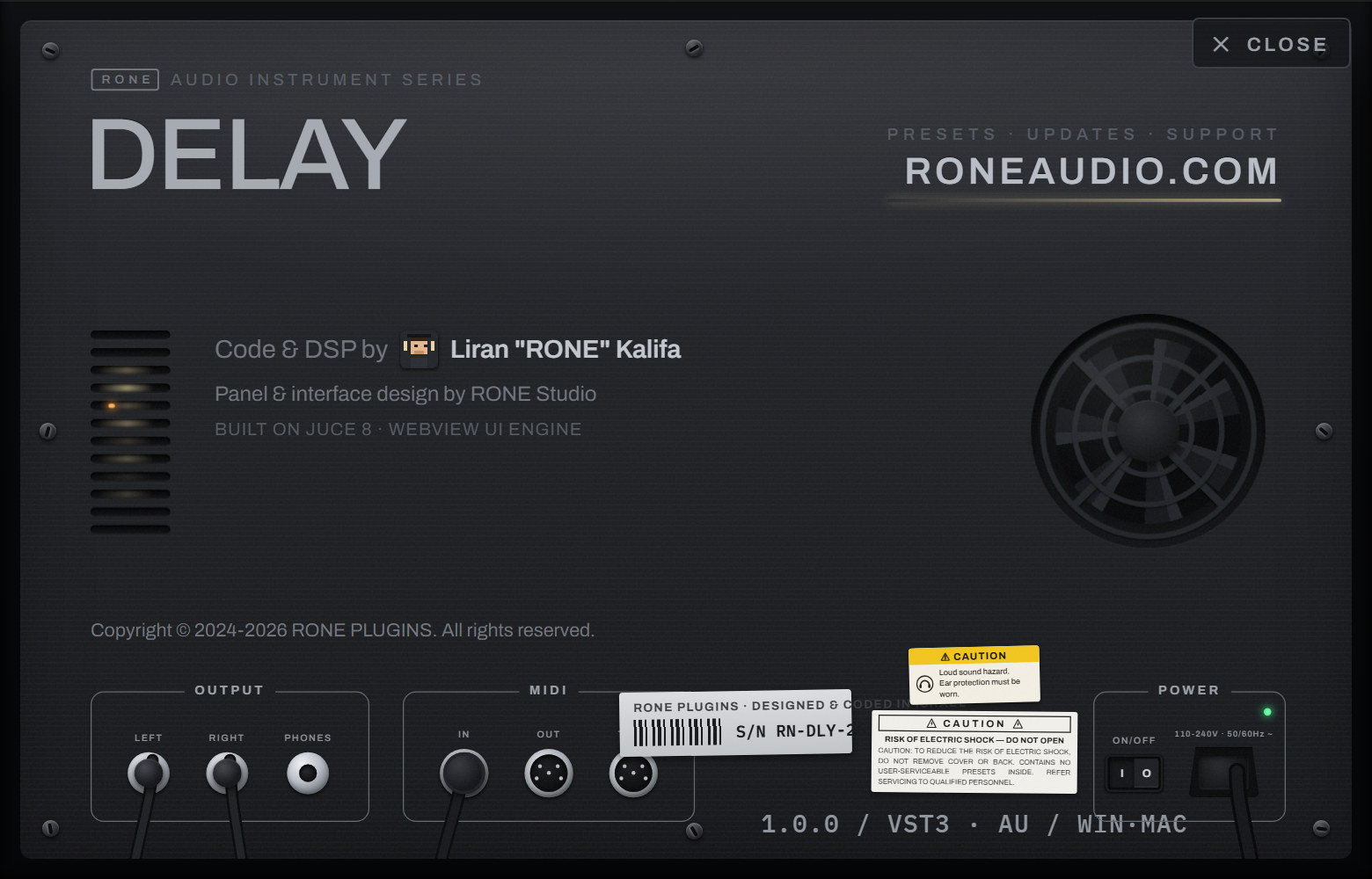
| Click the R logo / plugin name in the header | Flips the plugin over to its back panel: version, format, licence holder, a link to roneaudio.com and a DEACTIVATE button for this device. |
Automation
Every knob and switch is a host parameter. Automate it from the DAW's automation lane or by right-clicking the control inside the plugin (VST3). Values shown in the plugin always match the DAW's.
Presets and state
The plugin's full state is saved with your DAW project, so a project reopens exactly as you left it. Where the plugin has its own preset browser (the name field with ◀ ▶ arrows), factory presets are built in and your own presets are stored in your user folder.
Standalone version
The standalone app is the same plugin in its own window, useful for auditioning and exporting without a DAW. It uses your system's default audio device; with no DAW clock RONE Delay runs at 120 BPM.
14Troubleshooting, specifications and support
Troubleshooting
| Symptom | What to do |
|---|---|
| The echoes keep going after I stop the song | They should not: REST ON STOP empties the delay when the host stops. In the standalone there is no transport - press KILL. |
| SYNC times are wrong in the standalone | The standalone has no host tempo and runs at 120 BPM. Use MS for exact times there. |
| The tail builds up and gets loud | SAFE stops it at its knee, but very high FEEDBACK with an open filter is dense by nature: lower FEEDBACK, raise HP or lower LP. |
| Closing SEND does not stop the echoes | That is SEND's job - it lets the tail ring. Close WET (or press KILL) to stop them. |
| DUAL sounds like one delay | DUAL keeps left and right apart, so a mono source feeds both sides the same sound - set LEFT and RIGHT to different times to hear two delays. On a mono track only the LEFT delay is heard. |
| A preset name has a * after it | You changed something since loading it. Load it again to go back, or save your version in a MACRO slot. |
| The plugin does not appear in the DAW | Rescan plugins. On Windows the VST3 lives in C:\Program Files\Common Files\VST3\RONE; make sure that folder (or its parent) is in the DAW's VST3 search path. On macOS restart the DAW after installing; Logic and GarageBand may need a full AU rescan. |
| The window is blank or shows an error page (Windows) | The Microsoft WebView2 runtime is missing or damaged. Reinstall the RONE Plugins Center; it repairs WebView2. Also check that WebView2Loader.dll sits next to the standalone executable. |
| The window is white in Ableton Live but the standalone works (Windows) | Turn off Live's auto-scaling for this plugin: in Live's browser open Plug-Ins, right-click the plugin and untick Auto-Scale Plug-In Window, then delete the plugin from the track and insert it again. Seen with Windows display scaling at values such as 110 %. |
| A licence screen appears | Open the RONE Plugins Center, sign in, confirm your plan is active, then reopen the plugin. Check that you have not exceeded your device limit. |
| The plugin shows an older version than the Center | Close every DAW and standalone RONE app, then press UPDATE again. A running standalone keeps the old executable locked. |
| Crash | RONE plugins write a crash report to your user folder; the Center uploads it the next time it runs. Please also tell us what you did right before the crash. |
Specifications
| Product | RONE Delay |
| Version | 1.1.2 (manual revised November 2026) |
| Formats | VST3 · AU · Standalone (Windows: VST3 + Standalone; macOS: VST3 + AU + Standalone) |
| Systems | Windows 10 / 11 (64-bit) · macOS 11 or newer (Intel and Apple silicon, universal) |
| Channels | Mono or stereo in / out (DUAL works on stereo: left and right are two separate delays) |
| Sample rates | 44.1 kHz to 192 kHz |
| Latency | None added by the plugin |
| Engine | JUCE 8, WebView interface (WebView2 on Windows, WebKit on macOS) |
Support
Website, presets, updates and support: roneaudio.com. When writing to us, include the plugin version (shown on the back panel), your DAW and operating system, and the steps to reproduce.