
FET Limiter with a Scope, See Every Hit | RONE 1176 Complete Guide · 3 min · Watch on YouTube
1Welcome to RONE 1176
RONE 1176 is a model of the classic FET limiting amplifier, fitted to measurements of the Rev E (black-face) unit: the way the gain reduction grabs and lets go, how the release depends on the material, and the colour the circuit adds when you push it. It works like the hardware: there is no threshold knob. INPUT drives the signal into a fixed threshold, OUTPUT sets the level that leaves, and ATTACK and RELEASE run from 1 (slowest) to 7 (fastest).
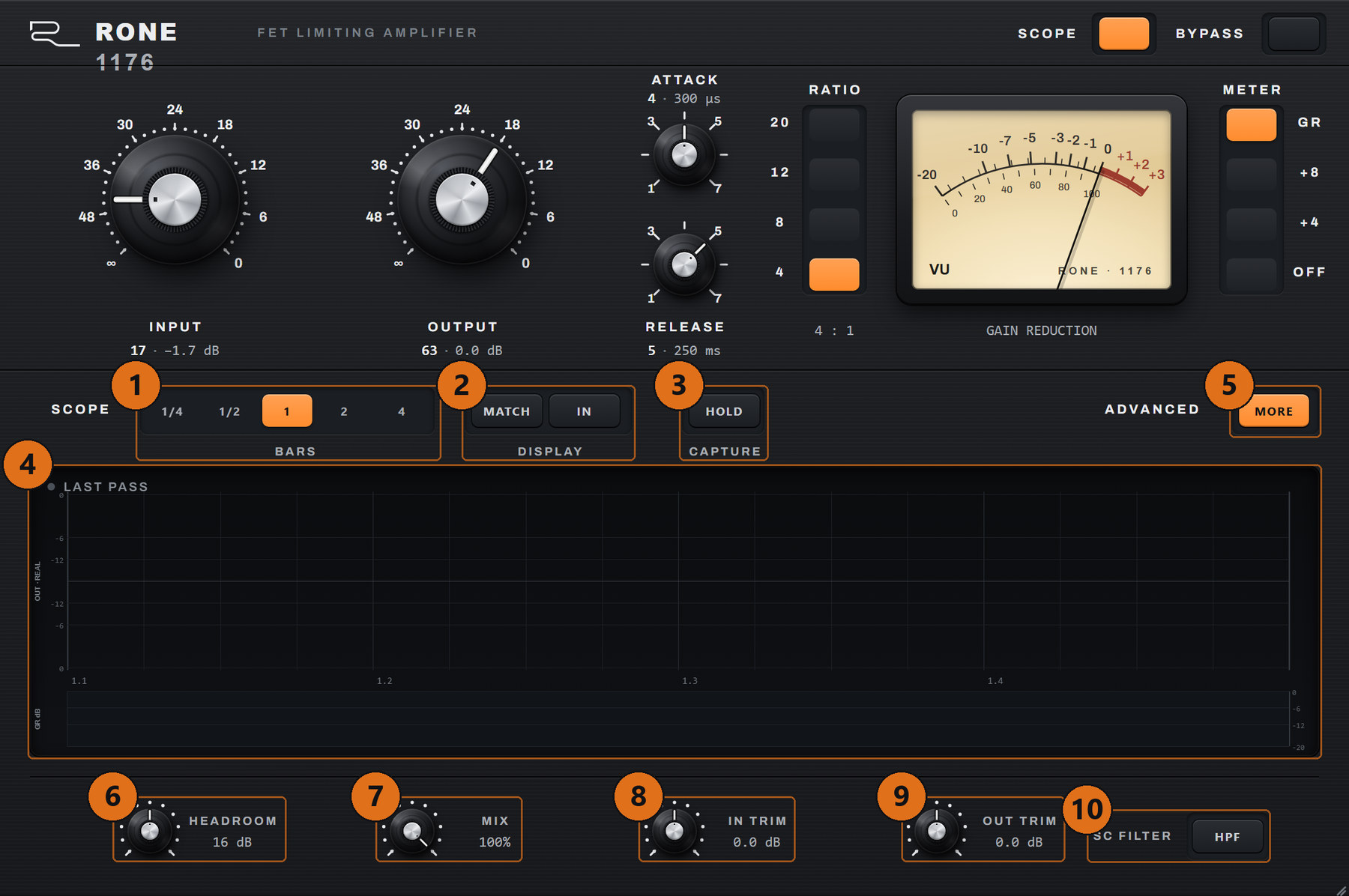
Press SCOPE and the window grows downwards: a scope draws the output wave and the gain reduction locked to the bars of your song, so you see what the limiter did to every hit instead of guessing from a needle.
Where it shines
- Vocals - fast attack, 4:1, a few dB on the needle: forward and steady.
- Drums and room mics - ALL (every ratio button in) for the aggressive, pumping sound.
- Bass - slow attack lets the pluck through, the body stays even.
- Parallel - MIX blends the squashed signal under the dry one.
The 10-second version
- Insert RONE 1176 on a vocal.
- RATIO 4, ATTACK 4, RELEASE 5.
- Turn INPUT up until the needle (GR) moves 3-7 dB on the loud words.
- Match the level with OUTPUT.
2Installation with the RONE Plugins Center
Every RONE product is installed, updated and licensed through one application: the RONE Plugins Center. You never download individual installers by hand, and you never enter serial numbers into the plugin itself.
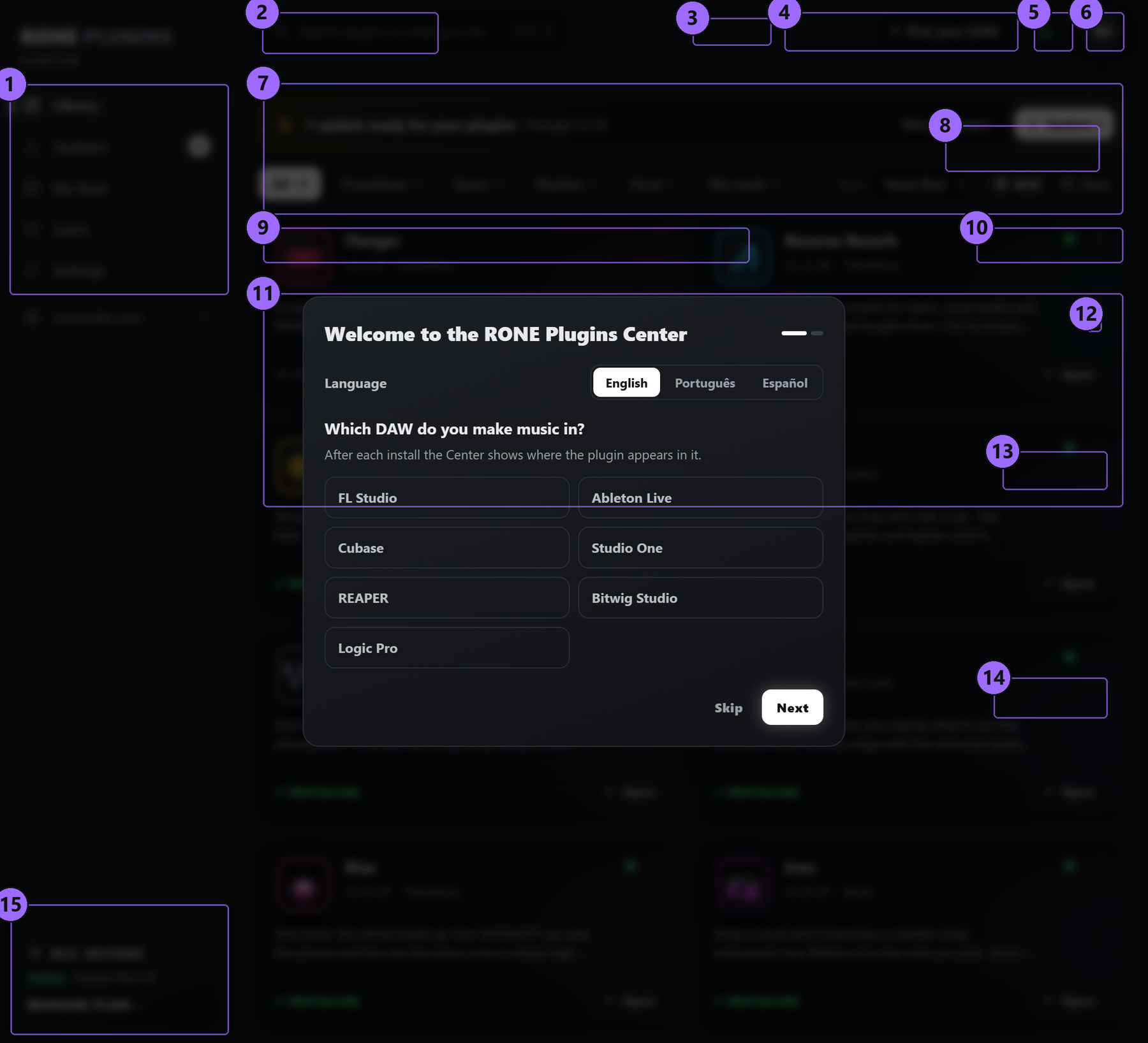
Step by step
- Download the Center from roneaudio.com and run the installer (Windows:
RONE_Plugins_Center_Installer.exe, macOS:RONE_Plugins_Center.dmg). On Windows the installer also adds the Microsoft WebView2 runtime if your PC does not have it yet; it is required for the plugin interfaces. On macOS (10.15 Catalina or later, Intel and Apple Silicon) open the .dmg and drag the Center onto Applications. It is signed and notarized by Apple, so macOS only asks once whether you want to open an app downloaded from the internet: press Open. - Open the Center and sign in with your roneaudio.com account (the same e-mail and password you used on the website). Your licences and device slots are checked automatically: an active ALL ACCESS plan unlocks every plugin. RONE 1176 is included in ALL ACCESS, so an active plan opens it.
- Find RONE 1176 in the list and press INSTALL. The Center downloads the signed installer, verifies its checksum, installs it silently and registers the version.
- When the card shows INSTALLED, start (or restart) your DAW and rescan plugins if it does not pick up new plugins automatically. All RONE plugins appear next to each other in your plugin list because every name starts with RONE.
- Updates appear on the same card. Press UPDATE on one plugin or UPDATE ALL at the top. Close the standalone version of a plugin before updating it.
Where the files go
Windows
| File | Location |
|---|---|
| VST3 | C:\Program Files\Common Files\VST3\RONE\RONE 1176.vst3 |
| Standalone app | C:\Program Files\RONE Plugins\RONE 1176.exe |
| This manual | C:\Program Files\RONE Plugins\Manuals\ |
macOS
| File | Location |
|---|---|
| VST3 | /Library/Audio/Plug-Ins/VST3/RONE 1176.vst3 |
| Audio Unit | /Library/Audio/Plug-Ins/Components/RONE 1176.component |
| Standalone app | /Applications/RONE 1176.app |
| This manual | /Users/Shared/RONE Plugins/Manuals/ |
Licence and activation
Licensing is tied to your account, not to a key. The plugin checks the licence file that the Center writes when you sign in. RONE 1176 is included in an ALL ACCESS plan and opens for as long as the plan is active; it is not sold as a separate lifetime licence.
If a plugin ever shows a RONE Bundle License Required screen, open the Center, make sure you are signed in and the plugin shows as licensed, then reopen it. Two devices can be signed in at the same time; sign out on an old machine from the Center's Account page to free a slot. The Center needs to reach the internet now and then to confirm your plan.
Uninstalling
Windows: Settings → Apps → RONE 1176 (RONE). macOS: delete the bundles listed above. Presets and settings in your user folder are kept.
3Quick start
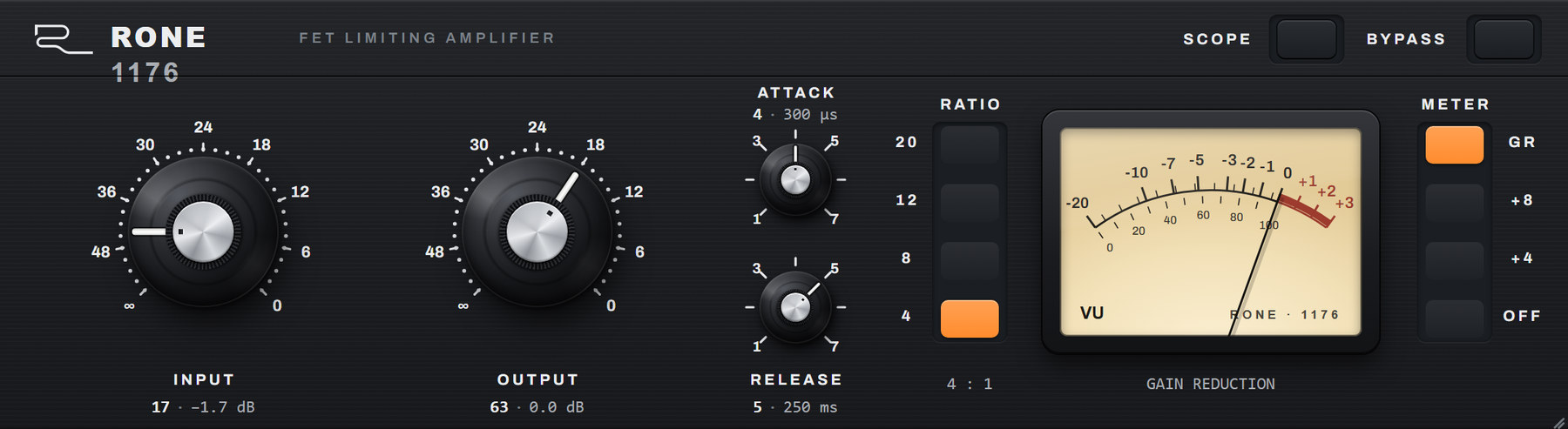
- Insert RONE 1176 on a track or bus.
- Pick a ratio: 4 for gentle compression, 8 or 12 for firm control, 20 for limiting, ALL for the aggressive sound.
- Turn INPUT up while watching the VU meter on GR. The more input, the more gain reduction - the threshold itself never moves.
- Set ATTACK and RELEASE. 7 is the fastest on both. A slower attack (1-3) lets transients through; a faster release (6-7) makes it louder and livelier.
- Bring the level back with OUTPUT so the bypassed and processed signal are about as loud, then compare with BYPASS.
4Interface tour
5Controls reference
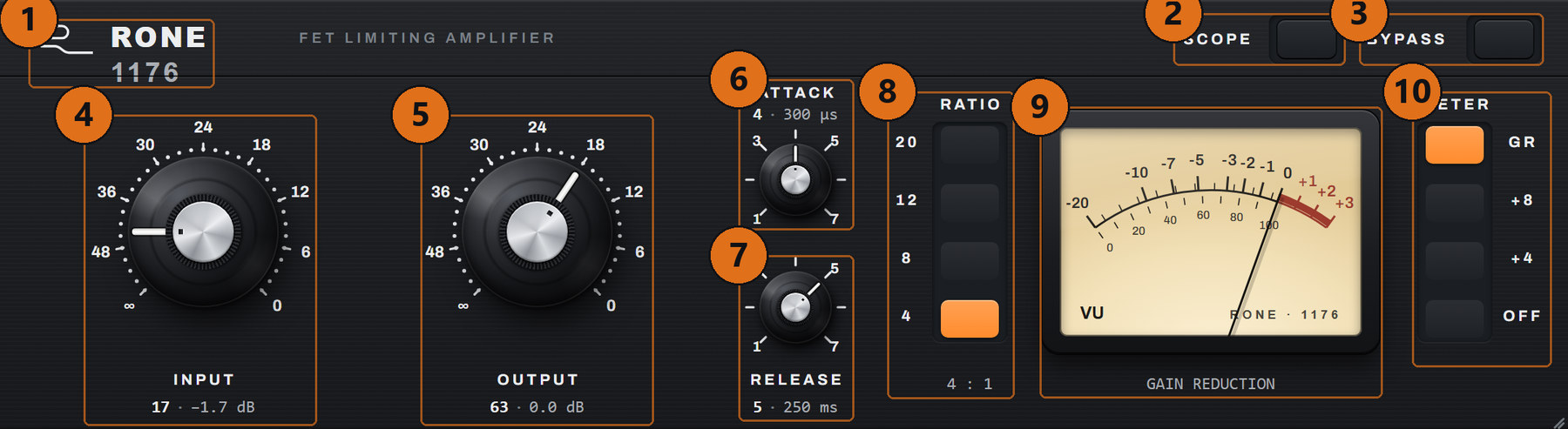
The input level into the limiter. Like on the hardware, the threshold is fixed: turning INPUT up drives more of the signal over it, so you get more gain reduction and more of the circuit's colour. The readout under the knob shows the dial position and the real gain in dB.
The output amplifier - the make-up gain. It never changes how much the unit compresses, only how loud the result leaves.
How fast the gain reduction grabs, from 800 µs at 1 to 20 µs at 7. Fully clockwise is the fastest, as on the hardware. Fast attacks shave the transients and add the characteristic low-frequency grit on bass and kick; slow attacks let the front of each hit through.
How fast it lets go, from 1.1 s at 1 to 50 ms at 7. The release also depends on the material: after a long, heavy stretch of gain reduction it recovers more slowly, as the hardware does.
4 and 8 compress, 12 and 20 limit. Pressing more than one button gives ALL (every button in, the trick engineers used on the original): a harder knee, more distortion and the pumping, exploding sound on drums and rooms.
What the VU meter shows. GR: gain reduction in dB. +8 and +4: the output level, with 0 VU at +8 or +4 dBu as on the hardware. OFF: the needle rests.
Takes the whole unit out of the path. Lit = bypassed.
SCOPE
Opens the scope under the unit; the window grows down and remembers it with the project.
The width of the scope, locked to the song's bars while the host plays.
Draws the output at the input level - the make-up gain removed - so you see only what the compression changed.
Draws the original signal as an outline behind the output.
Freezes the display. On the frozen screen the mouse wheel zooms, dragging scrolls and a double-click shows the whole window again. Hover the scope to read the position in the bar and the input, output and gain reduction there.
ADVANCED
The unit's headroom setting, stored with the project.
Dry against processed: lower it for parallel compression inside the plugin.
Level trims before and after the unit. IN TRIM sets how hot your track arrives without moving the INPUT dial; OUT TRIM sets the final level.
A high-pass in the sidechain, so the bass and the kick stop pumping the limiter. The audio itself is not filtered.
6Step-by-step workflows
The forward vocal
- RATIO 4, ATTACK 5-6, RELEASE 5-6.
- INPUT up until GR shows 3-7 dB on the loud words.
- OUTPUT to match the bypassed level. Open SCOPE to see each word come out even.
Smashed drum room
- Press several ratio buttons for ALL. ATTACK 3, RELEASE 7.
- Push INPUT until the needle slams; it should pump with the groove.
- Pull MIX down to 30-50 % to keep the dry punch under it.
Even bass, punchy front
- RATIO 4 or 8, ATTACK 1-2, RELEASE 5.
- SC FILTER on if the low notes pump more than the high ones.
- Check the scope: the start of each note passes, the sustain sits flat.
7Interface conventions
All RONE plugins share the same graphite interface language, so once you know one, you know them all.
| Gesture | What it does |
|---|---|
| Drag a knob up/down | Changes the value. The lit arc shows where you are in the range; the value is printed inside the knob. |
| Hold Shift while dragging | Fine adjustment. |
| Double-click a knob | Resets it to the default value. |
| Right-click a control (VST3) | Opens your DAW's automation / parameter menu for that control (for example FL Studio's Create automation clip, Link to controller). RONE never shows a browser context menu. |
| Mouse wheel | Steps through segmented switches and lists where the plugin offers them. |
| Drag the triangle in the bottom-right corner | Resizes the window. The interface scales proportionally and keeps its aspect ratio. |
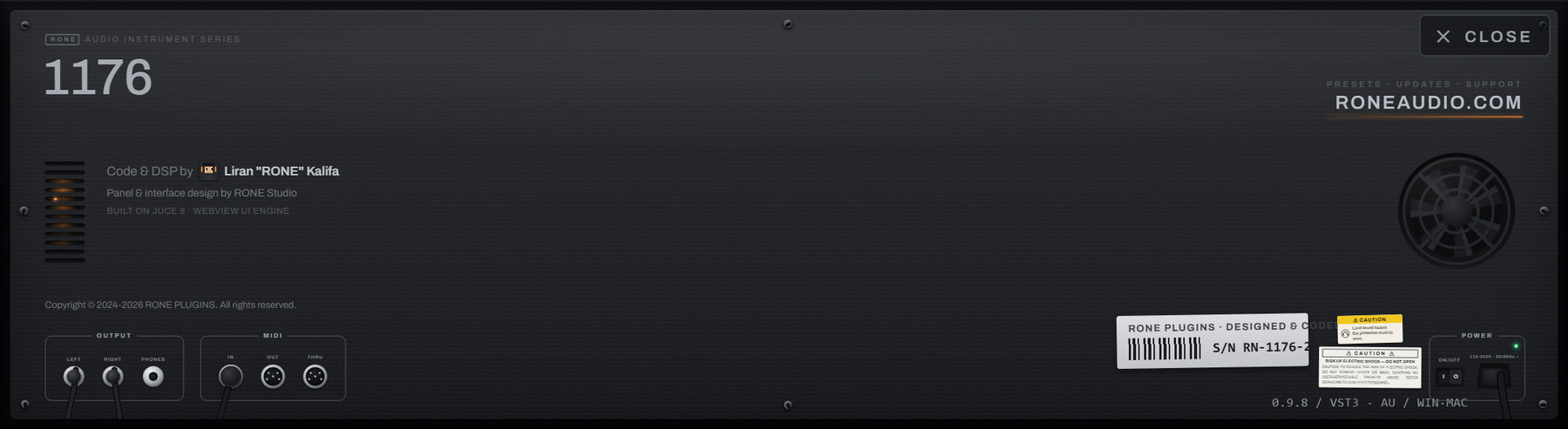
| Click the R logo / plugin name in the header | Flips the plugin over to its back panel: version, format, licence holder, a link to roneaudio.com and a DEACTIVATE button for this device. |
Automation
Every knob and switch is a host parameter. Automate it from the DAW's automation lane or by right-clicking the control inside the plugin (VST3). Values shown in the plugin always match the DAW's.
Presets and state
The plugin's full state is saved with your DAW project, so a project reopens exactly as you left it. Where the plugin has its own preset browser (the name field with ◀ ▶ arrows), factory presets are built in and your own presets are stored in your user folder.
Standalone version
The standalone app is the same plugin in its own window, useful for auditioning and exporting without a DAW. It uses your system's default audio device; when there is no DAW clock, tempo-synced controls follow the plugin's own BPM setting.
8Troubleshooting, specifications and support
Troubleshooting
| Symptom | What to do |
|---|---|
| No gain reduction | INPUT is too low - the threshold is fixed, turn INPUT up (or raise IN TRIM). |
| The bass distorts | That is the FET at fast attacks. Use a slower ATTACK or a slower RELEASE. |
| The scope stays empty | It draws while the host plays. Press play; HOLD may be on. |
| The low end pumps the whole mix | Switch SC FILTER on in ADVANCED. |
| The plugin does not appear in the DAW | Rescan plugins. On Windows the VST3 lives in C:\Program Files\Common Files\VST3\RONE; make sure that folder (or its parent) is in the DAW's VST3 search path. On macOS restart the DAW after installing; Logic and GarageBand may need a full AU rescan. |
| The window is blank or shows an error page (Windows) | The Microsoft WebView2 runtime is missing or damaged. Reinstall the RONE Plugins Center; it repairs WebView2. Also check that WebView2Loader.dll sits next to the standalone executable. |
| The window is white in Ableton Live but the standalone works (Windows) | Turn off Live's auto-scaling for this plugin: in Live's browser open Plug-Ins, right-click the plugin and untick Auto-Scale Plug-In Window, then delete the plugin from the track and insert it again. Seen with Windows display scaling at values such as 110 %. |
| A licence screen appears | Open the RONE Plugins Center, sign in, confirm your plan is active, then reopen the plugin. Check that you have not exceeded your device limit. |
| The plugin shows an older version than the Center | Close every DAW and standalone RONE app, then press UPDATE again. A running standalone keeps the old executable locked. |
| Crash | RONE plugins write a crash report to your user folder; the Center uploads it the next time it runs. Please also tell us what you did right before the crash. |
Specifications
| Product | RONE 1176 |
| Version | 0.9.11 (manual revised November 2026) |
| Formats | VST3 · AU · Standalone (Windows: VST3 + Standalone; macOS: VST3 + AU + Standalone) |
| Systems | Windows 10 / 11 (64-bit) · macOS 11 or newer (Intel and Apple silicon, universal) |
| Channels | Stereo in / stereo out |
| Sample rates | 44.1 kHz to 192 kHz |
| Latency | None added by the plugin |
| Engine | JUCE 8, WebView interface (WebView2 on Windows, WebKit on macOS) |
Support
Website, presets, updates and support: roneaudio.com. When writing to us, include the plugin version (shown on the back panel), your DAW and operating system, and the steps to reproduce.