
Big, Clean Reverb That Stays Out of the Way | RONE AFTERSPACE Complete Guide · 6 min · Watch on YouTube
1Welcome to RONE AFTERSPACE
RONE AFTERSPACE replaces the usual send chain - reverb, EQ, sidechain compressor, delay - with one plugin that already knows what a producer wants from a big space: it should sound expensive immediately, stay out of the way while the source is playing, and bloom into the gaps.
Four ideas live in one workflow: a large musical reverb, intelligent ducking driven by the plugin's own input, an echo that can sit before, inside or after the space, and BLOOM, which makes the late tail expand and evolve instead of simply decaying. SILK keeps the tail from hissing, MONO LOW keeps the low end tight, and AUTO GAIN keeps the wet level steady while you turn SIZE and DECAY.
Where it shines
- Big clean vocals - long tail, strong ducking, moderate pre-delay.
- Psytrance / trance leads - synced echo into a bright hall, ducked while the lead plays.
- Transitions - long decay, high BLOOM, wide motion; FREEZE at the end of a phrase.
- Pads and atmospheres - large SIZE, subtle ducking, wide, low motion.
- Drums - short clean room with transient ducking.
The 10-second version
- Insert on a vocal or lead (insert or send, both work).
- Pick a preset or turn SIZE and DECAY.
- Raise DUCK until the space steps back while the source plays.
- Add ECHO if you want repeats; drag CHARACTER towards DREAM for more movement.
2Installation with the RONE Plugins Center
Every RONE product is installed, updated and licensed through one application: the RONE Plugins Center. You never download individual installers by hand, and you never enter serial numbers into the plugin itself.
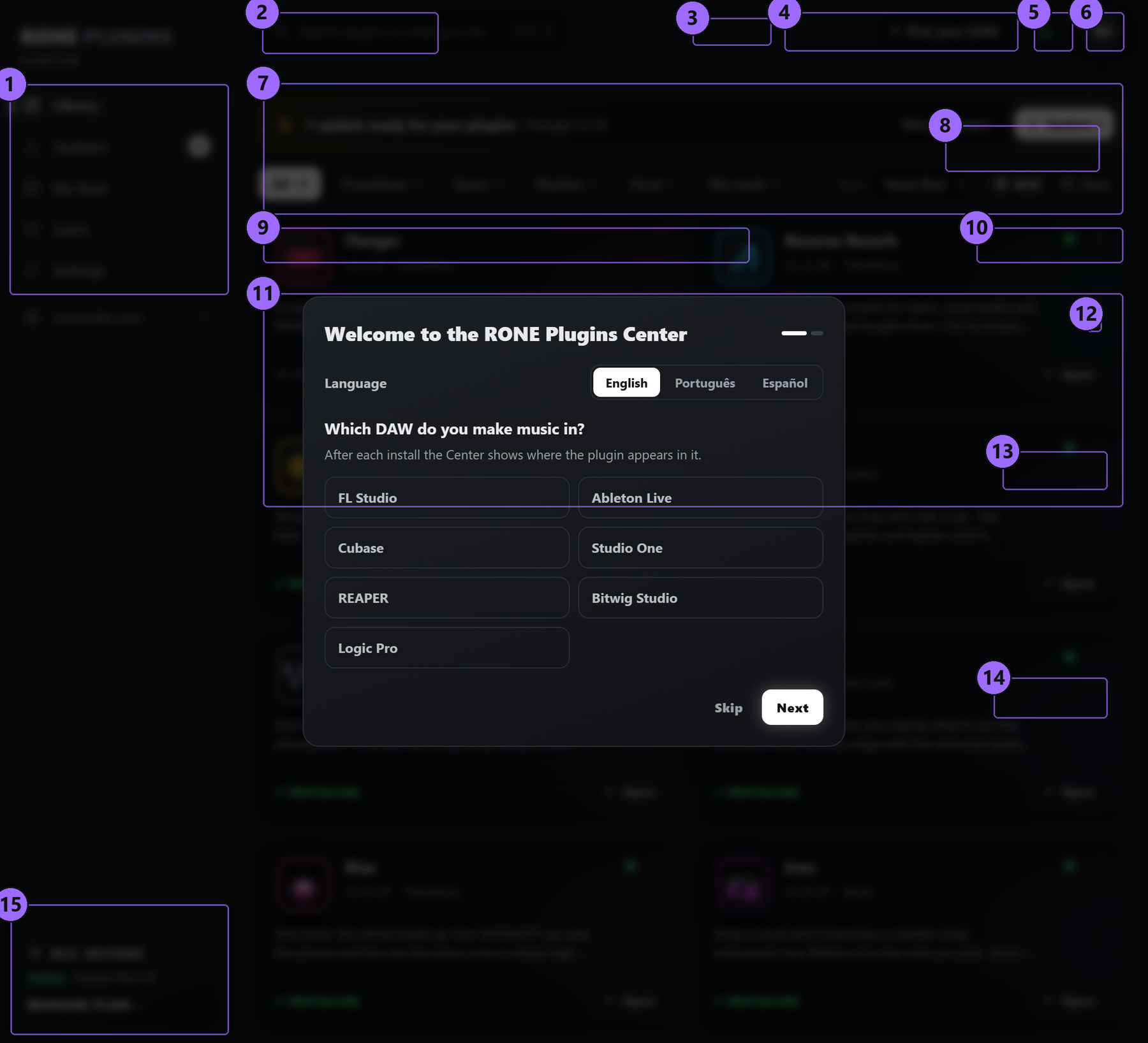
Step by step
- Download the Center from roneaudio.com and run the installer (Windows:
RONE_Plugins_Center_Installer.exe, macOS:RONE_Plugins_Center.dmg). On Windows the installer also adds the Microsoft WebView2 runtime if your PC does not have it yet; it is required for the plugin interfaces. On macOS (10.15 Catalina or later, Intel and Apple Silicon) open the .dmg and drag the Center onto Applications. It is signed and notarized by Apple, so macOS only asks once whether you want to open an app downloaded from the internet: press Open. - Open the Center and sign in with your roneaudio.com account (the same e-mail and password you used on the website). Your licences and device slots are checked automatically: an active ALL ACCESS plan unlocks every plugin, and a lifetime licence unlocks the plugin it was bought for — so RONE AFTERSPACE opens either way.
- Find RONE AFTERSPACE in the list and press INSTALL. The Center downloads the signed installer, verifies its checksum, installs it silently and registers the version.
- When the card shows INSTALLED, start (or restart) your DAW and rescan plugins if it does not pick up new plugins automatically. All RONE plugins appear next to each other in your plugin list because every name starts with RONE.
- Updates appear on the same card. Press UPDATE on one plugin or UPDATE ALL at the top. Close the standalone version of a plugin before updating it.
Where the files go
Windows
| File | Location |
|---|---|
| VST3 | C:\Program Files\Common Files\VST3\RONE\RONE AFTERSPACE.vst3 |
| Standalone app | C:\Program Files\RONE Plugins\RONE AFTERSPACE.exe |
| This manual | C:\Program Files\RONE Plugins\Manuals\ |
macOS
| File | Location |
|---|---|
| VST3 | /Library/Audio/Plug-Ins/VST3/RONE AFTERSPACE.vst3 |
| Audio Unit | /Library/Audio/Plug-Ins/Components/RONE AFTERSPACE.component |
| Standalone app | /Applications/RONE AFTERSPACE.app |
| This manual | /Users/Shared/RONE Plugins/Manuals/ |
Licence and activation
Licensing is tied to your account, not to a key. The plugin checks the licence file that the Center writes when you sign in. There are two ways to own it: an ALL ACCESS plan, which unlocks every RONE plugin for as long as it is active, or a lifetime licence for this plugin alone, which never expires. Either one opens RONE AFTERSPACE, and buying the lifetime licence later does not disturb a plan you already have.
If a plugin ever shows a RONE Bundle License Required screen, open the Center, make sure you are signed in and the plugin shows as licensed, then reopen it. Two devices can be signed in at the same time on either kind of licence; sign out on an old machine from the Center's Account page to free a slot. A lifetime licence keeps working offline for far longer than a plan does — there is nothing for it to expire against — but the Center still needs to reach the internet occasionally to confirm it.
Uninstalling
Windows: Settings → Apps → RONE AFTERSPACE (RONE). macOS: delete the bundles listed above. Presets and settings in your user folder are kept.
3Quick start
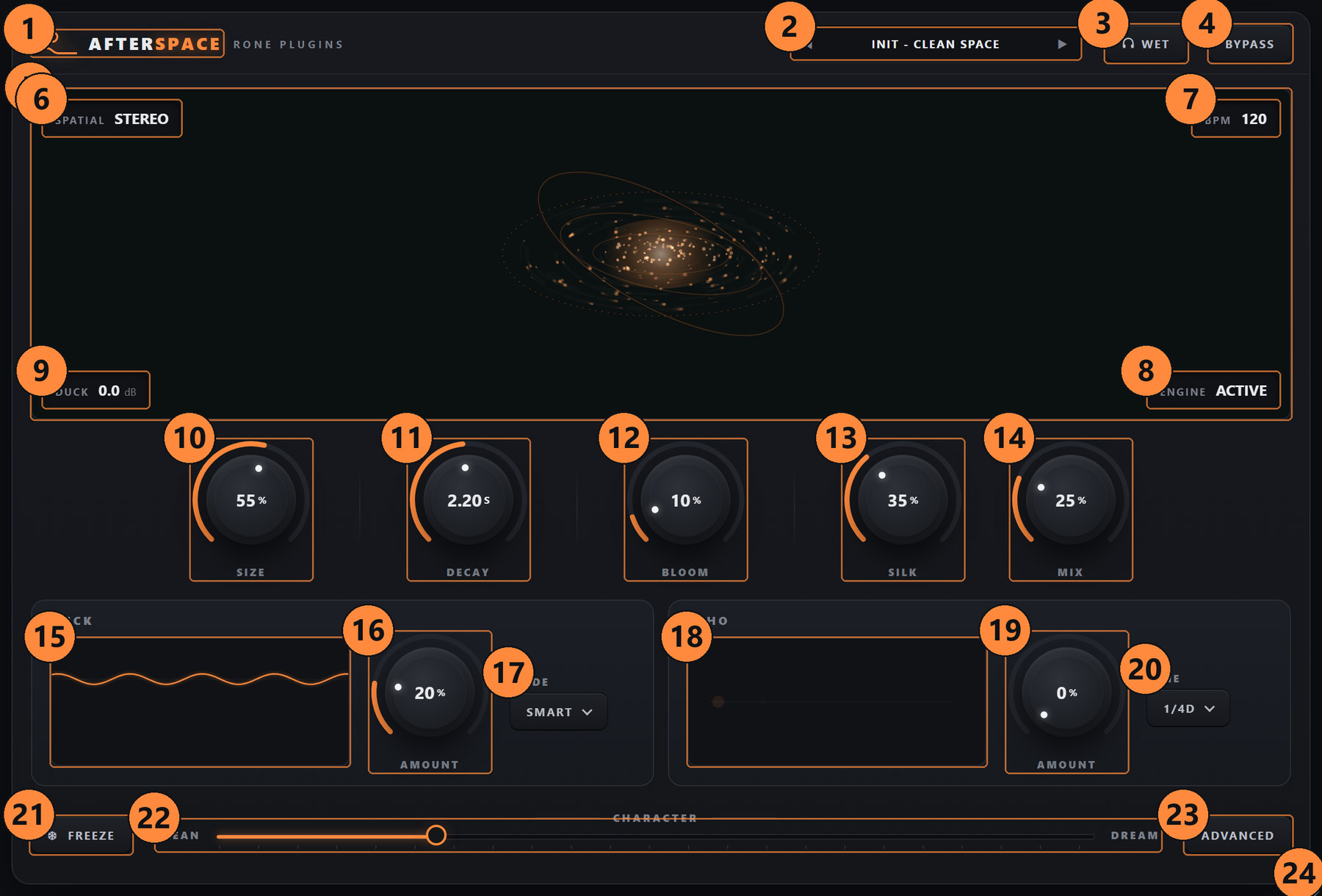
- Insert AFTERSPACE on the vocal channel. As an insert, use MIX to balance; on a send, set MIX to 100 % and use the send level.
- Start from a preset. Step through them with ◀ ▶ or click the name for the list. Huge Clean Vocal, Psy Lead Space and Festival Hall are good starting points; Init - Clean Space is the neutral setting.
- Set the room. SIZE is how big the space feels; DECAY is how long the tail rings (0.2 s to 30 s). AUTO GAIN keeps the wet level steady while you change them.
- Keep it clean. Raise DUCK until the tail steps back while the vocal is singing and returns in the gaps. The DUCK chip in the display shows the gain reduction in dB; the envelope in the DUCK module draws it over time. SMART mode (default) ducks where the source is, leaving the rest of the atmosphere alive.
- Tame the top. SILK is a de-esser on the reverb tail: more SILK, fewer sibilant splashes.
- Add repeats. Turn ECHO up and pick a note value (1/4D is the default). The dots in the ECHO module show the repeats.
- Set the mood. BLOOM makes the late tail expand after the note; CHARACTER slides the whole engine from tight and CLEAN to wide and DREAMy.
- Audition. Press 🎧 WET to hear only the space; press FREEZE at the end of a phrase to hold the tail.
4Interface tour
5Controls reference
Main knobs

The dimensions of the space: early reflections spread out, the tail becomes denser and wider. Small values give rooms and plates; large values give halls and cathedrals.
How long the tail takes to die away. The range is musically curved: the first half of the knob covers up to about 3 s, the rest stretches to 30 s.
The creative identity of AFTERSPACE. Instead of only decaying, the late tail opens up after the note: diffusion, width and modulation increase over time so the room seems to grow behind the source. 0 % is a conventional reverb; 25-50 % is an audible expansion that does not sound like chorus; 100 % is a full atmosphere generator.
A de-esser on the reverb input and tail. It stops sibilance and harsh transients from turning into a wash of hiss, without darkening the whole reverb the way a high cut would.
Dry / wet balance. On a send set it to 100 %.
DUCK module
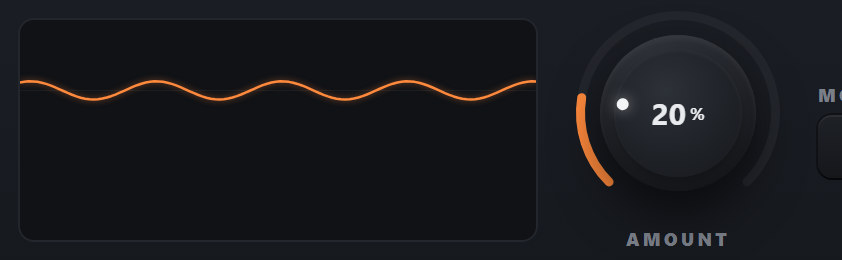
How far the wet signal is pushed down while the dry input is active. The detector is the plugin's own input, so no sidechain routing is needed. 30-50 % is the classic 'reverb that gets out of the way'; higher values make the space appear only in the gaps.
SMART ducks by frequency region: the tail is attenuated where the source is dominant while the rest of the atmosphere stays alive. FULL is broadband ducking of the whole wet signal. VOCAL weights the detector for speech intelligibility. TRANSIENT reacts fast to attacks - drums and plucks. CUSTOM hands you the ATTACK, HOLD, RELEASE and SENS controls in the ADVANCED drawer.
The detector envelope. ATTACK is how fast the tail ducks when the source starts, HOLD keeps it down between syllables, RELEASE is how fast the space comes back, SENS is the detector threshold.
ECHO module
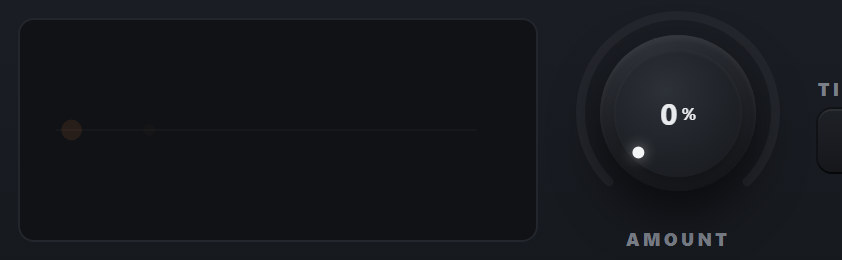
Level of the echo. At 0 % the echo engine is silent.
Delay time as a note value at the host tempo, or FREE, which uses the FREE MS control (10 to 2000 ms) in the ADVANCED drawer.
How many repeats. The loop is limited internally, so even the maximum never runs away.
Filters in the feedback path, so every repeat gets darker and thinner. Classic tape-style behaviour.
BEFORE: dry → echo → reverb; the repeats feed the space. INSIDE: the echo is cross-fed into the late reverb network; repeats dissolve into the space rather than staying separate. AFTER: reverb → echo; the tail itself echoes.
Alternates repeats left and right.
Bottom row

Holds the current state of the reverb network for as long as you like - an infinite sustain, click-free in and out. The dry signal keeps playing normally. Automate it at the end of a phrase and release it on the next downbeat.
A macro that moves the whole engine at once. Towards CLEAN: tighter diffusion, less modulation, controlled width, darker and cleaner tail, conservative echo feedback. Towards DREAM: more movement, wider late field, softer diffusion, more air, more bloom and more echo interaction. The mapping is musical, not a linear blend.
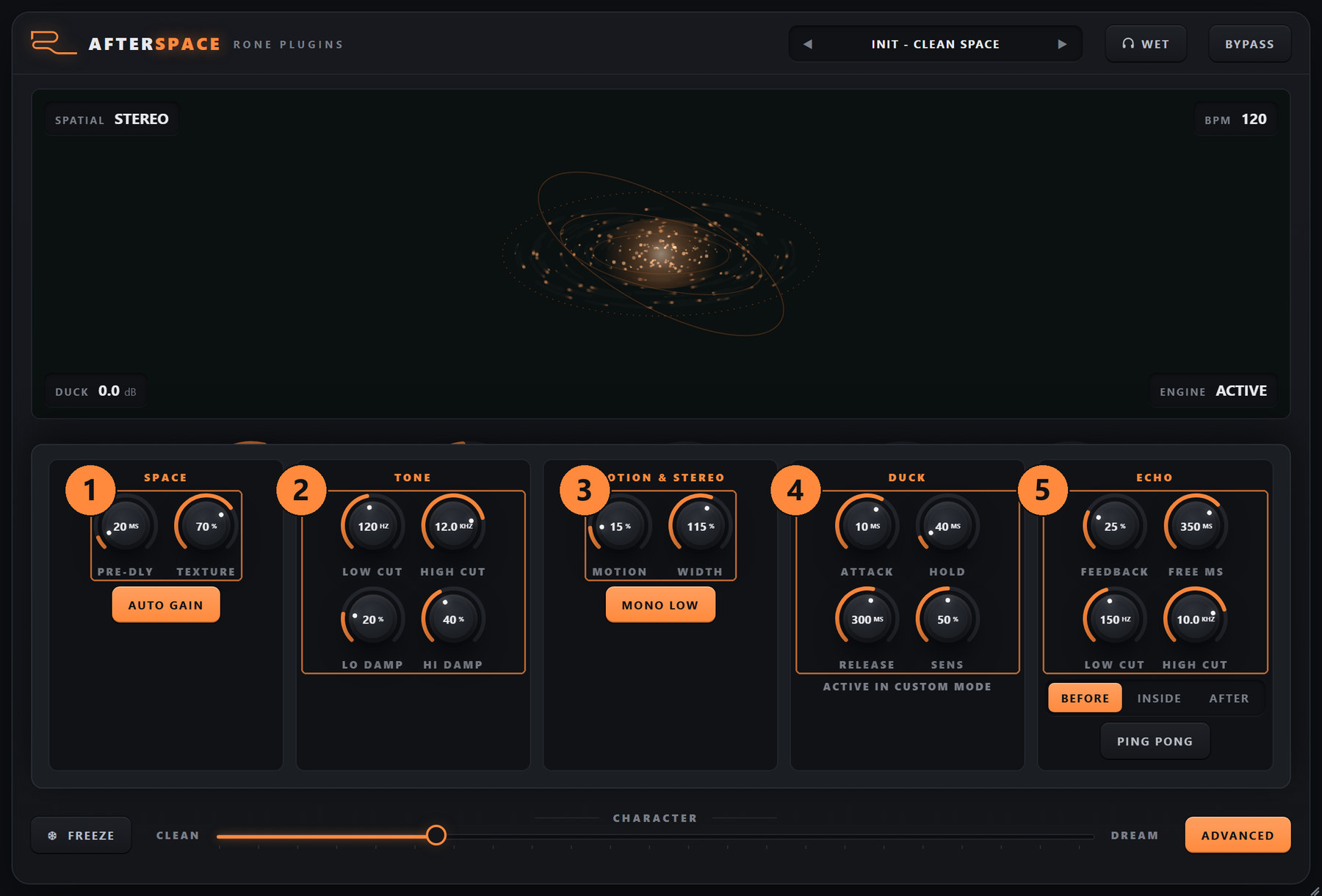
ADVANCED drawer
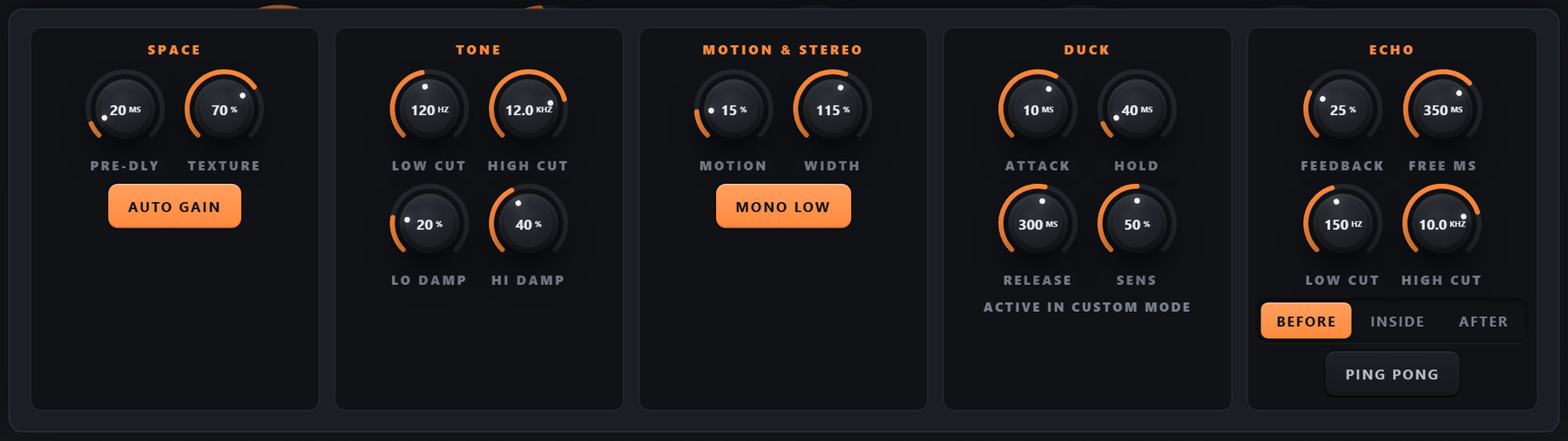
| Group | Control | Range / default | What it does |
|---|---|---|---|
| SPACE | PRE-DLY | 0-250 ms, 20 ms | Silence before the reverb starts; keeps the attack of the source clear. |
| TEXTURE | 0-100 %, 70 % | Density and diffusion of the reflections. Low = sparse, grainy early space; high = smooth wash. | |
| AUTO GAIN | on by default | Keeps the wet loudness steady when SIZE or DECAY change. | |
| TONE | LOW CUT / HIGH CUT | 120 Hz / 12 kHz | Filters on the reverb input. |
| LO DAMP / HI DAMP | 20 % / 40 % | How fast lows and highs die inside the tail. More HI DAMP = warmer, shorter top end. | |
| MOTION & STEREO | MOTION | 0-100 %, 15 % | Modulation inside the tail. Small amounts avoid metallic ringing; large amounts are chorus-like. |
| WIDTH | 0-150 %, 115 % | Stereo width of the wet signal. 100 % is natural; above it is wider than the source. | |
| MONO LOW | on by default | Keeps the wet signal mono below about 150 Hz for a solid low end. | |
| DUCK | ATTACK / HOLD / RELEASE / SENS | see above | Detector envelope, active in CUSTOM mode. |
| ECHO | FEEDBACK / FREE MS / LOW CUT / HIGH CUT / routing / PING PONG | see above | Echo engine details. |
Presets
Factory presets: Init - Clean Space, Huge Clean Vocal, Wide Pop Tail, Dream Vocal Throw, Dark Intimate Hall, Psy Lead Space, Clean 1/8D Lead, Festival Hall, Acid Echo Space, Infinite Violet Cloud, Deep Temple, Blooming Sky, Frozen Air, Tight Transient Room, Big Snare Bloom, Percussion Chamber, Silk Pad Widener, End Of Phrase Throw, Riser Space, Cathedral Of Glass, Violet Dream Machine and Ducked Infinity. Presets never change BYPASS or MIX on a send.
6Step-by-step workflows
Huge clean vocal
- Insert on the lead vocal (or on a send with MIX 100 %). Load Huge Clean Vocal, or: SIZE 70 %, DECAY 3.5 s, PRE-DLY 40 ms, SILK 50 %.
- DUCK 45 %, MODE VOCAL. Play the verse: the tail should disappear behind the words and swell back at the ends of lines.
- In CUSTOM mode set RELEASE to 700 ms if the swell should be slower.
- BLOOM 20 %; CHARACTER 35 %. Keep MONO LOW on.
Psytrance lead space
- Load Psy Lead Space, or: SIZE 60 %, DECAY 2 s, HIGH CUT 14 kHz, HI DAMP 25 %.
- ECHO 35 %, TIME 1/8D, FEEDBACK 40 %, routing BEFORE, PING PONG on.
- DUCK 50 %, MODE SMART - the echo and the hall duck together while the lead plays.
- For the 'inside the hall' version switch routing to INSIDE.
End-of-phrase throw
- On a duplicate of the vocal, insert AFTERSPACE with MIX 100 % and load End Of Phrase Throw.
- Automate MIX (or the send) to open only on the last word of the phrase.
- Automate FREEZE on for the last beat of the bar and off on the next downbeat.
Transition atmosphere
- Load Blooming Sky on a pad or a held vocal note: DECAY 12 s, BLOOM 70 %, MOTION 35 %, WIDTH 130 %, CHARACTER 80 %.
- Press WET solo to hear only the space; press FREEZE and stop the source - the frozen tail becomes the transition bed.
- Automate HIGH CUT down over the last bar for a natural fade.
Tight drum room
- Load Tight Transient Room: SIZE 20 %, DECAY 0.6 s, PRE-DLY 5 ms, TEXTURE 45 %.
- DUCK 35 %, MODE TRANSIENT. The room speaks between hits, not on top of them.
7Recommendations
Do
- Use DUCK instead of automating the send. It reacts to the performance, so it is right on every take.
- Leave AUTO GAIN and MONO LOW on unless you have a reason not to. They are why AFTERSPACE stays clean at large sizes.
- Reach for SILK before HIGH CUT when the tail is harsh - it removes the splashes and keeps the air.
- Use CHARACTER as your first move when a preset is close but not quite: it changes many parameters musically at once.
- Try ECHO routing INSIDE on sustained material; it is the setting that makes repeats feel like part of the room.
Avoid
- BLOOM above 50 % on rhythmic sources at short DECAY; the expansion has no time to develop and can smear transients.
- WIDTH above 130 % on material that must survive mono playback.
- Stacking DUCK with an external sidechain compressor; one of them is enough and two will pump.
- Judging the space with MIX at 25 % on a send - set it to 100 % and use the send level instead.
Sound tips
- PRE-DLY is definition. 20-40 ms separates the dry attack from the tail and makes a large space feel closer without making it smaller.
- TEXTURE below 40 % gives a grainy, almost granular early space that works beautifully on plucks.
- FREEZE plus MOTION keeps a frozen tail alive; without motion a frozen tail is static.
- The visualiser is a meter. The nebula brightens with level and spins with motion, so a glance tells you whether the space is doing something while the source plays.
8Interface conventions
All RONE plugins share the same graphite interface language, so once you know one, you know them all.
| Gesture | What it does |
|---|---|
| Drag a knob up/down | Changes the value. The lit arc shows where you are in the range; the value is printed inside the knob. |
| Hold Shift while dragging | Fine adjustment. |
| Double-click a knob | Resets it to the default value. |
| Right-click a control (VST3) | Opens your DAW's automation / parameter menu for that control (for example FL Studio's Create automation clip, Link to controller). RONE never shows a browser context menu. |
| Mouse wheel | Steps through segmented switches and lists where the plugin offers them. |
| Drag the triangle in the bottom-right corner | Resizes the window. The interface scales proportionally and keeps its aspect ratio. |
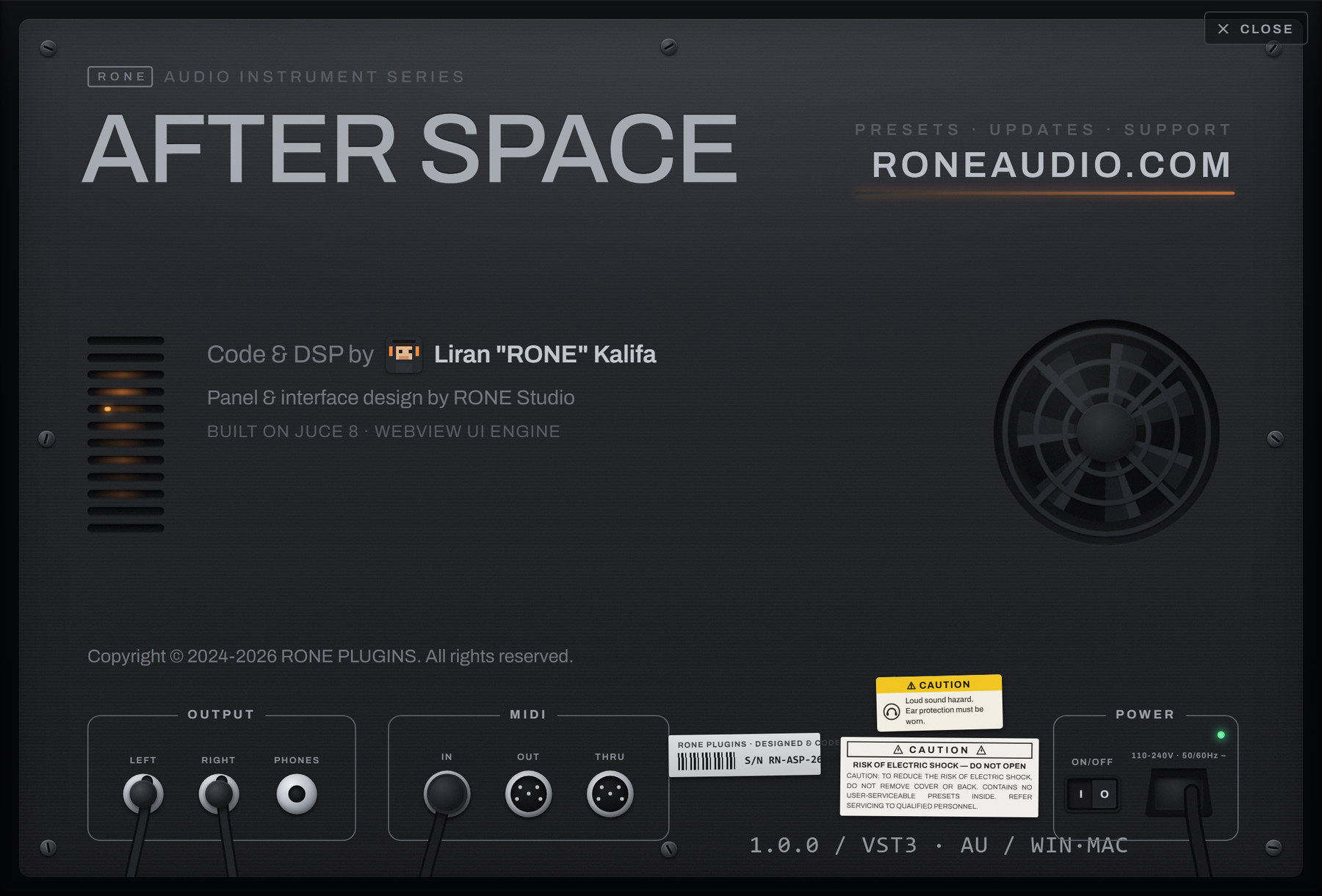
| Click the R logo / plugin name in the header | Flips the plugin over to its back panel: version, format, licence holder, a link to roneaudio.com and a DEACTIVATE button for this device. |
Automation
Every knob and switch is a host parameter. Automate it from the DAW's automation lane or by right-clicking the control inside the plugin (VST3). Values shown in the plugin always match the DAW's.
Presets and state
The plugin's full state is saved with your DAW project, so a project reopens exactly as you left it. Where the plugin has its own preset browser (the name field with ◀ ▶ arrows), factory presets are built in and your own presets are stored in your user folder.
Standalone version
The standalone app is the same plugin in its own window, useful for auditioning and exporting without a DAW. It uses your system's default audio device; when there is no DAW clock, tempo-synced controls follow the plugin's own BPM setting.
9Troubleshooting, specifications and support
Troubleshooting
| Symptom | What to do |
|---|---|
| The reverb sounds distant and small even at high SIZE | Check MIX (25 % default on an insert) and the send level. Also raise PRE-DLY: a space with 0 ms pre-delay reads as further away. |
| Ducking does not react | DUCK reacts to the plugin's own input. On a send, the input is the send signal - make sure the send is pre-fader or the source is not muted. Raise SENS in CUSTOM mode for quiet sources. |
| Synced echo is out of time | The host must send tempo and transport position (most do while playing). In the standalone app the plugin runs at its own BPM shown in the chip. |
| CPU is high | Reduce TEXTURE and MOTION slightly, or use one instance on a send instead of several inserts. |
| The plugin does not appear in the DAW | Rescan plugins. On Windows the VST3 lives in C:\Program Files\Common Files\VST3\RONE; make sure that folder (or its parent) is in the DAW's VST3 search path. On macOS restart the DAW after installing; Logic and GarageBand may need a full AU rescan. |
| The window is blank or shows an error page (Windows) | The Microsoft WebView2 runtime is missing or damaged. Reinstall the RONE Plugins Center; it repairs WebView2. Also check that WebView2Loader.dll sits next to the standalone executable. |
| The window is white in Ableton Live but the standalone works (Windows) | Turn off Live's auto-scaling for this plugin: in Live's browser open Plug-Ins, right-click the plugin and untick Auto-Scale Plug-In Window, then delete the plugin from the track and insert it again. Seen with Windows display scaling at values such as 110 %. |
| A licence screen appears | Open the RONE Plugins Center, sign in, confirm your plan is active, then reopen the plugin. Check that you have not exceeded your device limit. |
| The plugin shows an older version than the Center | Close every DAW and standalone RONE app, then press UPDATE again. A running standalone keeps the old executable locked. |
| Crash | RONE plugins write a crash report to your user folder; the Center uploads it the next time it runs. Please also tell us what you did right before the crash. |
Specifications
| Product | RONE AFTERSPACE |
| Version | 1.0 (manual revised November 2026) |
| Formats | VST3 · AU · Standalone (Windows: VST3 + Standalone; macOS: VST3 + AU + Standalone) |
| Systems | Windows 10 / 11 (64-bit) · macOS 11 or newer (Intel and Apple silicon, universal) |
| Channels | Stereo in / stereo out |
| Sample rates | 44.1 kHz to 192 kHz |
| Latency | None added (the reverb itself has a pre-delay you set) |
| Engine | JUCE 8, WebView interface (WebView2 on Windows, WebKit on macOS) |
Support
Website, presets, updates and support: roneaudio.com. When writing to us, include the plugin version (shown on the back panel), your DAW and operating system, and the steps to reproduce.